
Managing your popups list
When you visit the Popups page, you'll see a curated list of popups that have been popular among our users, which we recommend for you.
How to add your favourite popups to your list ?
To add your own favorite popups to your list, follow these steps:
- Simply click "New Popup." This will bring up a wide range of popup options from the Uppush Popups library for you to explore and choose from.
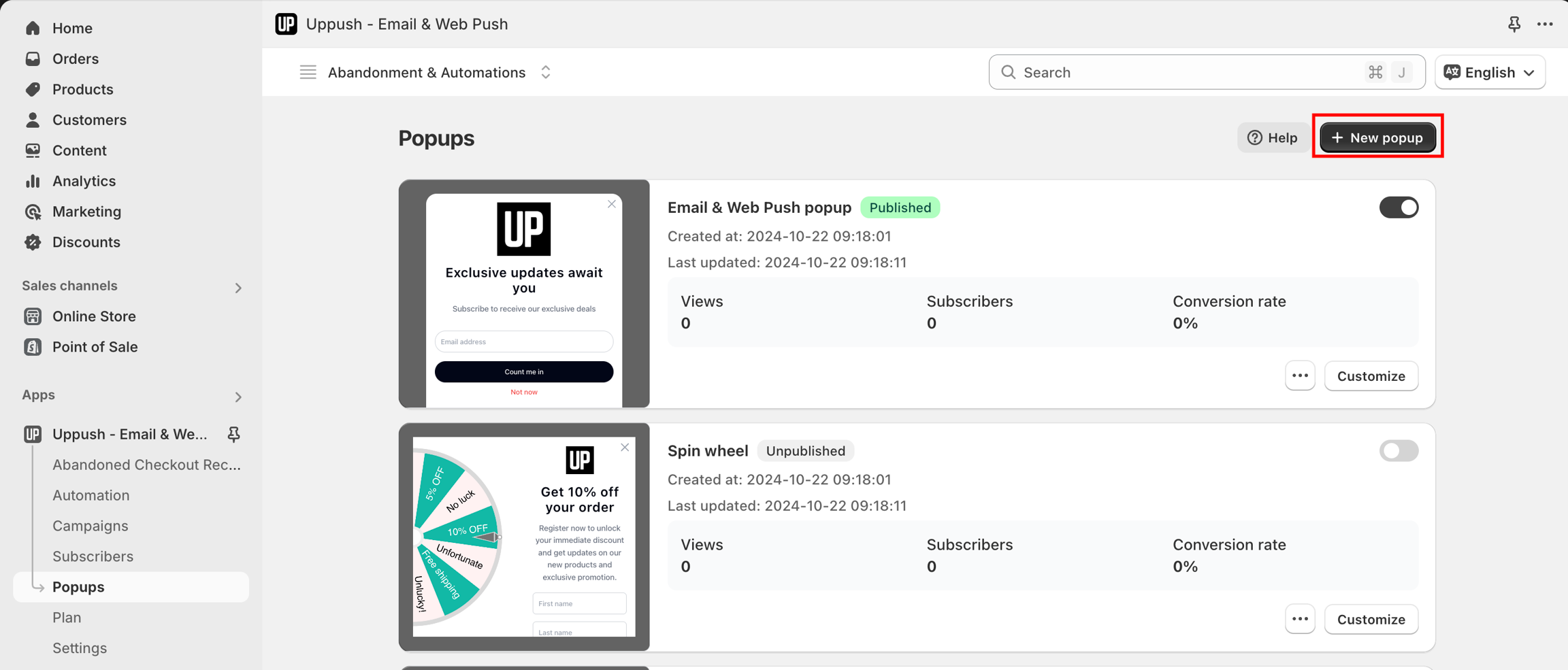
Add new popups
- Choose the popups you want to show in the list, click "Add popup"
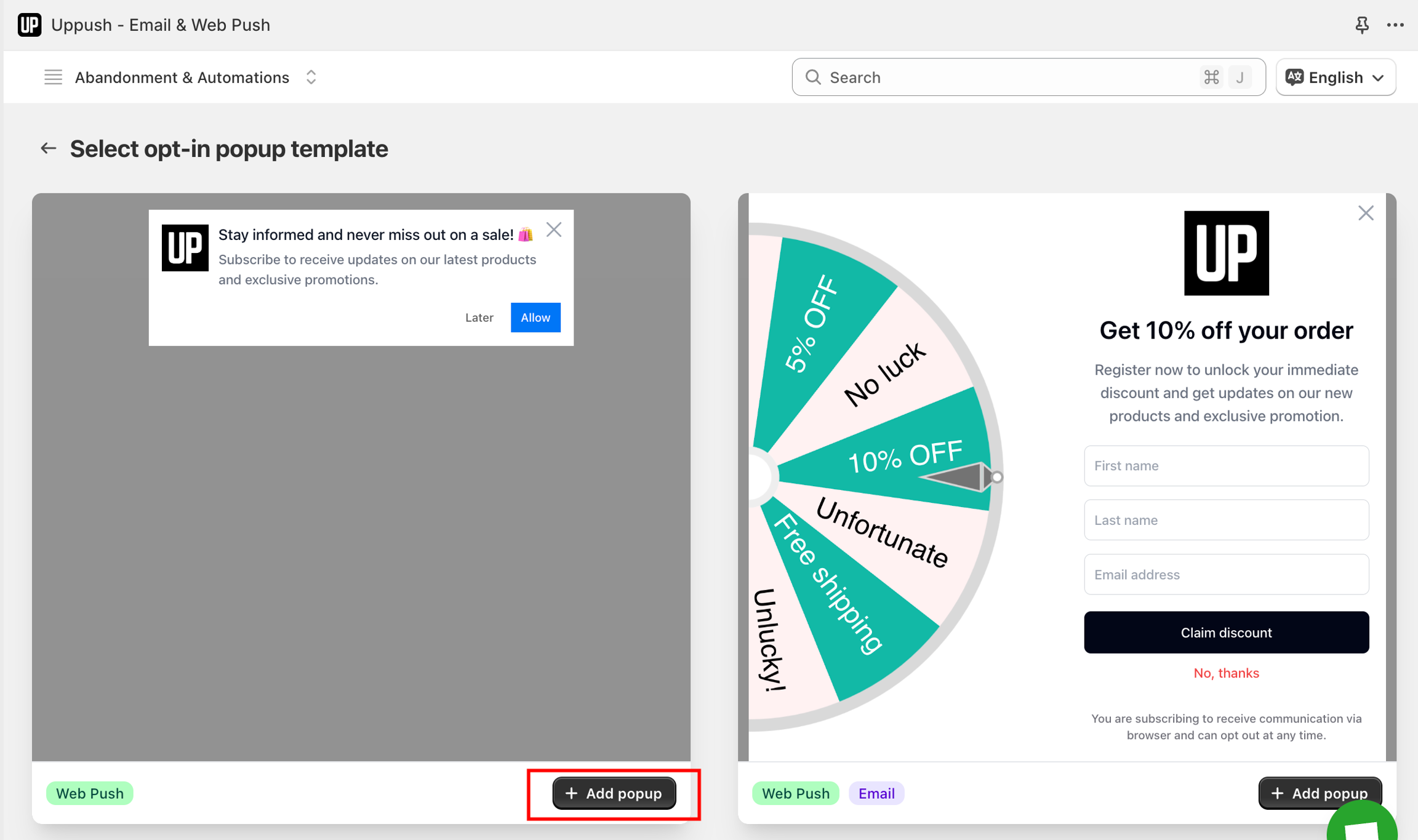
Choose popups
How to delete a popup from your list ?
To remove a popup from your list, simply click on the three dots icon next to the popup you want to delete. A dropdown menu will appear, and you can select "Delete" to remove it from your list.
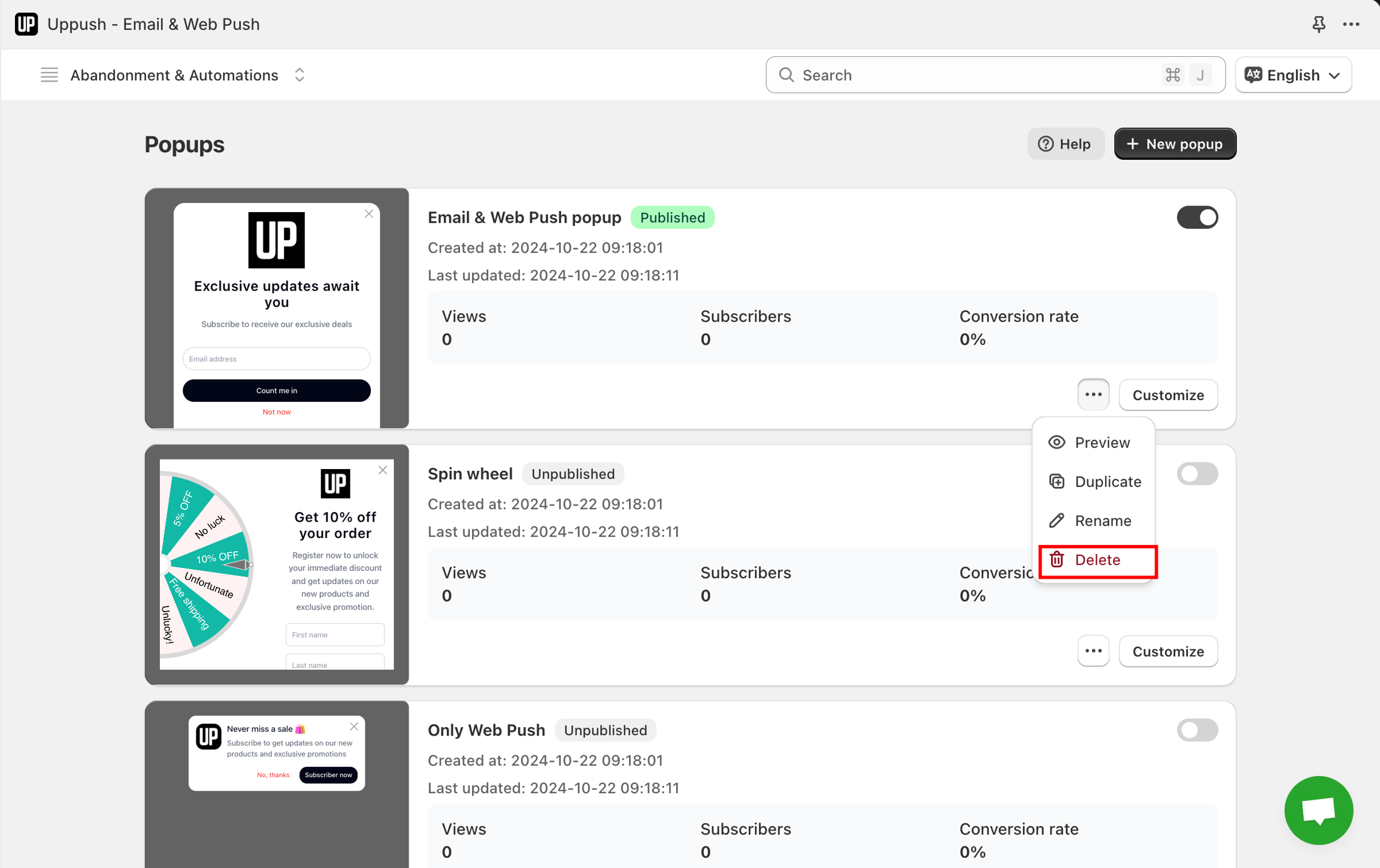
Delete a popups from list
Other options
Other available options include:
- Preview: Previewing how the popups will appear on your user's screen by clicking "Preview."
- Duplicate: If you want to create a similar popup quickly, simply click "Duplicate" to copy the current style.
- Rename: To make popups easier to manage, you can also click "Rename" and give the popup a name that suits your preferences.