
Back in stock alert
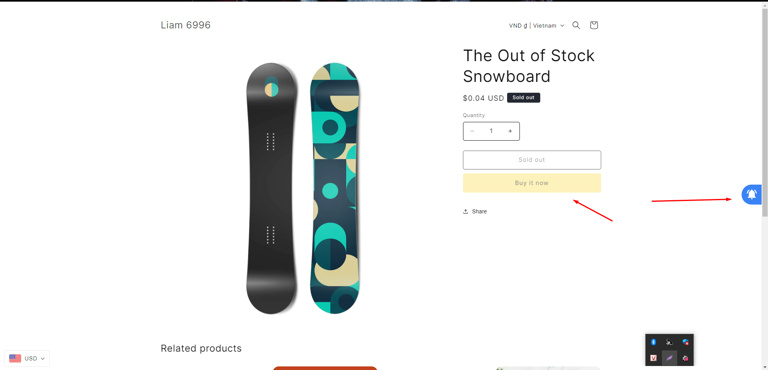
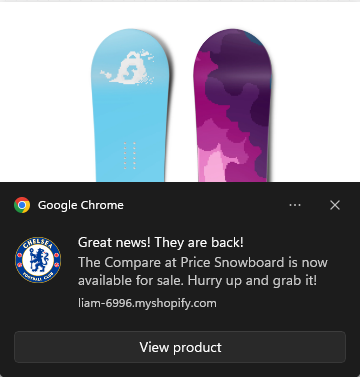
When a product is sold out, shoppers can click Notify me on the product page. As soon as you restock it, the back in stock flow alerts every shopper who asked.
Before you start
- The Uppush app embed must be on in your theme — it shows the Notify me button. See Theme extension.
- Available on paid plans (Starter, Premium, Pro).
Set it up
- Go to Flows and click New flow.
- Under Remind customers to purchase, choose Back in stock alert · Standard and click Use this template.
- Click Customize widget at the top of the builder to adjust how the Notify me button looks and where it appears on the product page.
- Review the messages, then click Save and Turn on.

How it works
- A shopper opens an out‑of‑stock product and clicks Notify me. If they have not subscribed to your store yet, the browser asks them to allow notifications first.
- You add stock for that product variant in Shopify.
- The flow starts for each shopper who asked about that variant: a push right away, and the email 10 minutes later.
- Trigger: Product back in stock.
- Exit when: the shopper places an order.
To see who is waiting for which product, click Product subscribers at the top of the builder.
The push notification links to the product () and can mention it by name (). The email shows the product in the back in stock block.
Other versions
- With follow‑up reminder — a second push and email one day later, before it sells out again.
- VIP early access — customers tagged VIP hear right away, everyone else two hours later.
Tips
- If the Notify me button does not appear in the right place on your theme, use Customize widget to set where the Add to cart button is. Leaving the fields empty lets the widget find it automatically, which works for most themes.