
Flow steps
Between the trigger and the end, a flow is a list of steps. There are two kinds:
- Actions send something or change something: Send push notification, Send email, Manage tags. See Actions.
- Flow control steps decide timing and paths: Delay, Condition and Split (A/B test). They are described here.
Adding a step
Click the + button on the line between two steps and pick the step to insert. The new step appears in that position and the flow reconnects around it.
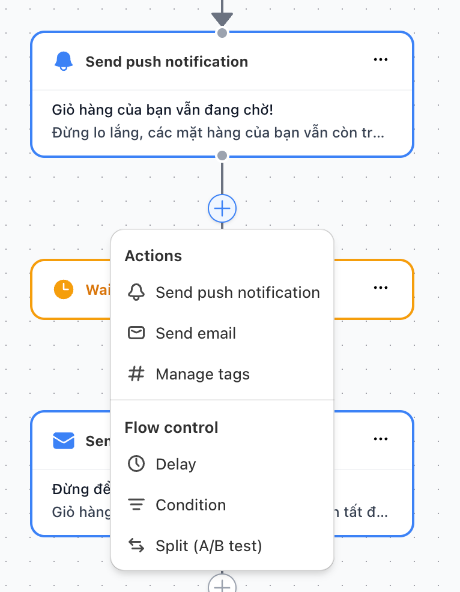
Use the menu on a step card to duplicate or delete it. Deleting a condition or a split asks whether to remove one branch or both, because every step below the removed branch is removed too.
Limits
- Up to 20 steps per flow.
- Up to 3 conditions and splits per flow.
The counters at the top left of the builder (for example 13/20 nodes and 0/3 branches) show how many you have used.
Delay
Shown on the canvas as Wait for. Pauses the flow for a set time before the next step: enter the Duration and choose the Unit — minutes, hours or days.
Tips:
- Waits add up. In push → wait 10 minutes → email → wait 2 hours → push, the second push is sent about 2 hours 10 minutes after the first.
- In a Product added to cart flow, the wait the shopper is currently in starts over whenever they change their cart. Reminders therefore go out a set time after the cart was last touched, not after the first product was added.
- A wait never sends anything by itself. If the shopper meets an exit condition during the wait, they leave the flow before the next message.
Condition
Splits the flow into two paths — True and False — depending on whether the shopper matches the rules you set. Each path then has its own steps.
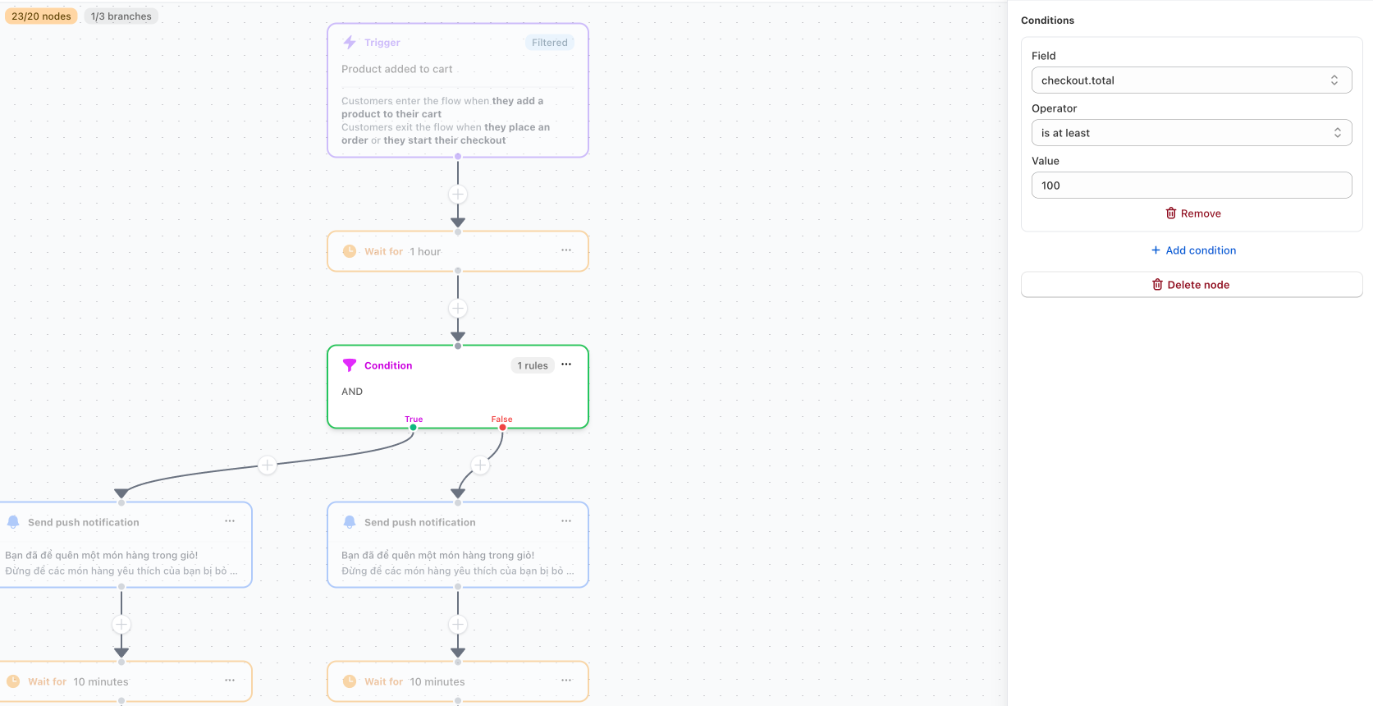
Examples:
- Checkout total is at least 100 → True: send reminders with a discount. False: send reminders without a discount.
- Orders count is at least 1 → True: returning customer message. False: first‑time buyer offer.
- Customer tags contains any of "VIP" → True: send right away. False: wait 2 hours first.
What you can check depends on the trigger: customer details are always available; checkout, order, product or message details are available when the trigger provides them.
Unlike filters, a condition is checked at the moment the shopper reaches it, so it sees the latest customer details.
Missing information goes to False
If the information a condition needs is missing — for example a web push subscriber without a customer profile, checked against Orders count — the result is False.
Split (A/B test)
Sends shoppers down one of two paths at random, so you can compare two versions — different timings, different messages, with or without a discount.
Set the A/B ratio to choose what share of shoppers goes to each path. Reset to 50/50 restores an even split.
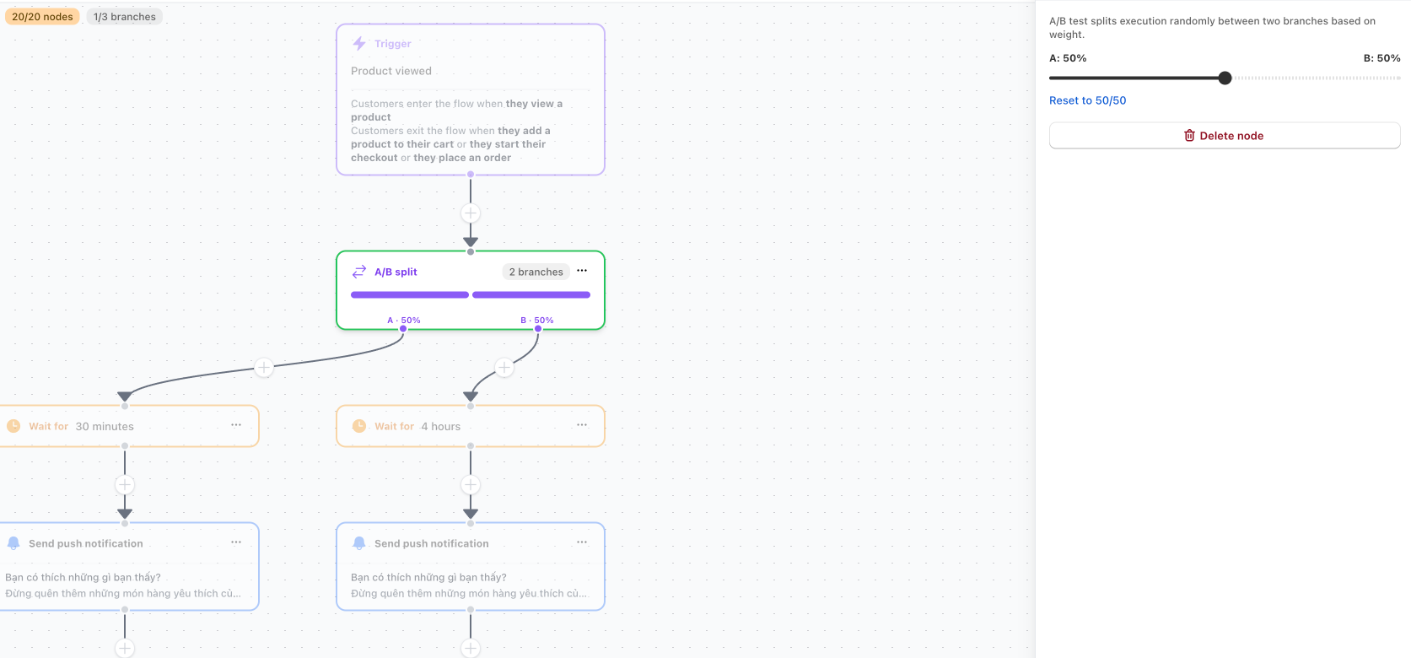
To see which path performs better, turn on Show metrics in the builder, or open the flow report: each message shows its own results — sent, open rate (emails), click rate and revenue. See Flow reports and execution log.
Good practice:
- Change one thing between the two paths, so you know what made the difference.
- Let the test run long enough to collect at least a few hundred shoppers per path before choosing a winner.
- When you have a winner, delete the split's other path so every shopper gets the winning version.
End
Every path finishes with an End card. A shopper who reaches it has completed the flow. You can give it an Exit reason (for example "Purchased") to make reports easier to read.
Related
- Actions — what each send step does
- Filters, entry rules and exit conditions
- Test your flow — check which path a shopper takes