
Flows overview
A flow is a series of web push notifications, emails and actions that Uppush sends automatically when a shopper does something in your store: subscribes, leaves a cart, views a product, places an order, and so on.
You build a flow once. From then on, every shopper who matches it moves through the steps on their own schedule, and stops as soon as the flow has done its job — for example when they complete their purchase.
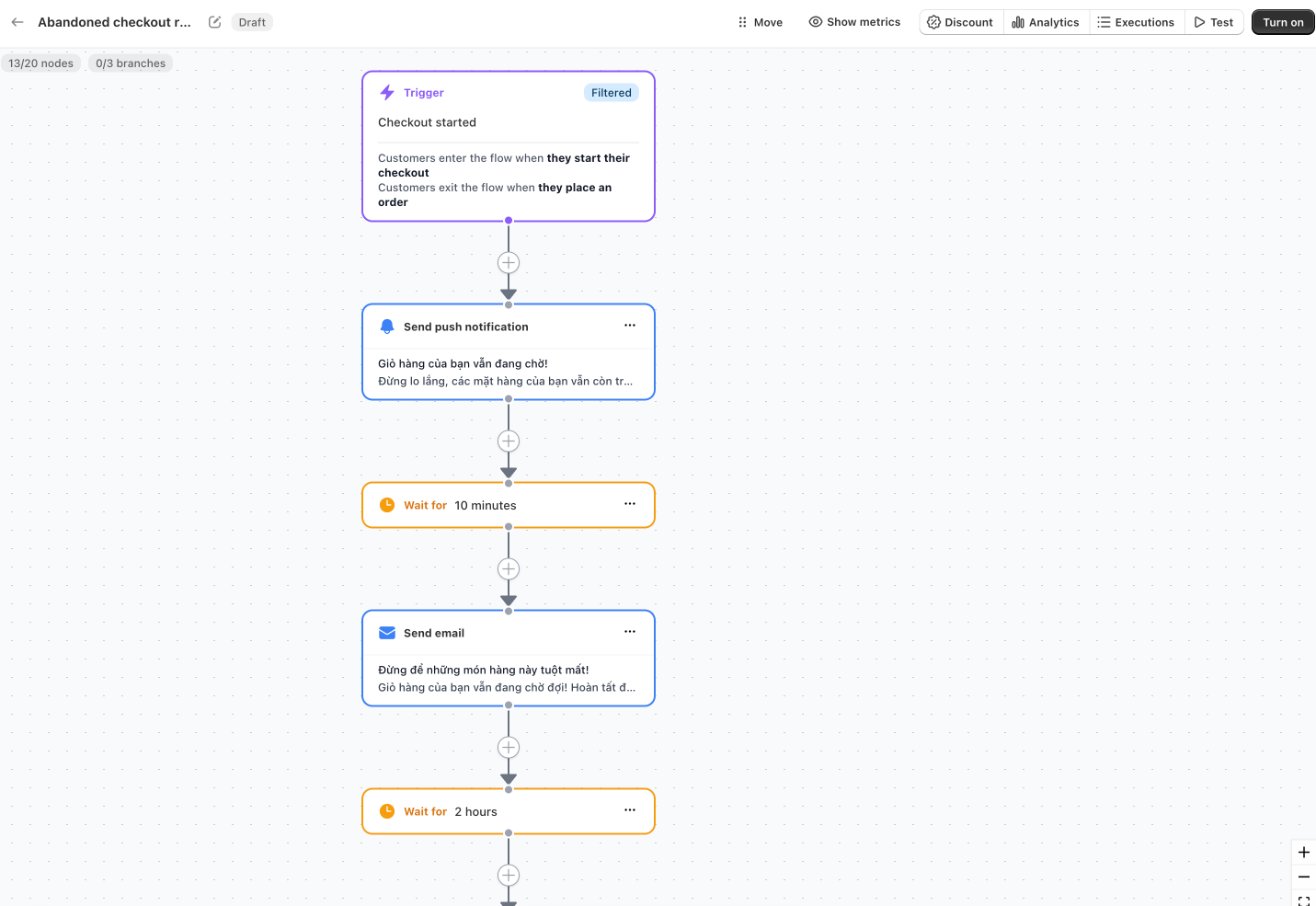
What a flow is made of
Every flow reads from top to bottom, like a recipe:
| Part | What it does | Example |
|---|---|---|
| Trigger | The event that makes a shopper start the flow. | Checkout started |
| Filters | Optional rules that decide which shoppers may start it. | Only checkouts worth more than $50 |
| Steps | What happens next, in order: wait, check a condition, split into paths, or send something. | Wait 2 hours, then send an email |
| Exit conditions | Events that stop the flow early for a shopper. | Stop when the shopper places an order |
Each part has its own article: Triggers, Filters, entry rules and exit conditions, Flow steps and Actions.
What you can do with flows
- Send web push and email in the same journey. A typical reminder sends a push notification first and the email ten minutes later, so shoppers hear from you on the channel they check first.
- Choose your own timing. Wait minutes, hours or days between steps, and limit sending to the hours and days you prefer.
- Treat shoppers differently. Give a discount only to high‑value carts, or send VIP customers an early alert, using conditions.
- Test what works best. Split shoppers into two paths at random (an A/B test) and compare the results.
- Tag customers in Shopify. Add or remove customer tags as part of a flow.
- Speak your customers' language. Ready‑made messages are translated into every language published in your store.
- See exactly what happened. Open a flow's report or follow a single shopper step by step in the execution log.
Start from a ready‑made template
You do not have to build anything from scratch. The template library has 33 ready‑made flows — abandoned cart, abandoned checkout, welcome series, back in stock, winback and more — each with messages already written and translated.
New stores get three of them automatically, saved as drafts: Welcome series, Abandoned cart reminder and Abandoned checkout reminder. Review them and turn them on when you are ready.
Flows replace Automations
Flows replace the old Automations page. If you used Automations before:
- Every automation that was turned on has been converted into a flow with the same messages, delays and discounts, and that flow is already turned on.
- Automations that were turned off were converted into draft flows, so your content is still there if you want it.
- Messages that the old automations had already scheduled are still delivered, and their opens, clicks and revenue are counted in the new flow's report.
- Links to the old Automations page now open the Flows page.
There is nothing you need to do — but it is a good moment to open your flows, check them, and try the new features such as conditions and A/B tests.
Where to find flows
In the Uppush app, click Flows in the menu.
The Flows page shows:
- Summary cards — revenue from flows, active flows, customers currently in a flow, and how many times customers entered a flow in the last 30 days.
- The list of your flows — with their status (Active, Draft or Inactive), how many customers entered in the last 30 days, how many are in progress, messages sent, open rate and click rate. Under each flow name you see a short preview of its steps.
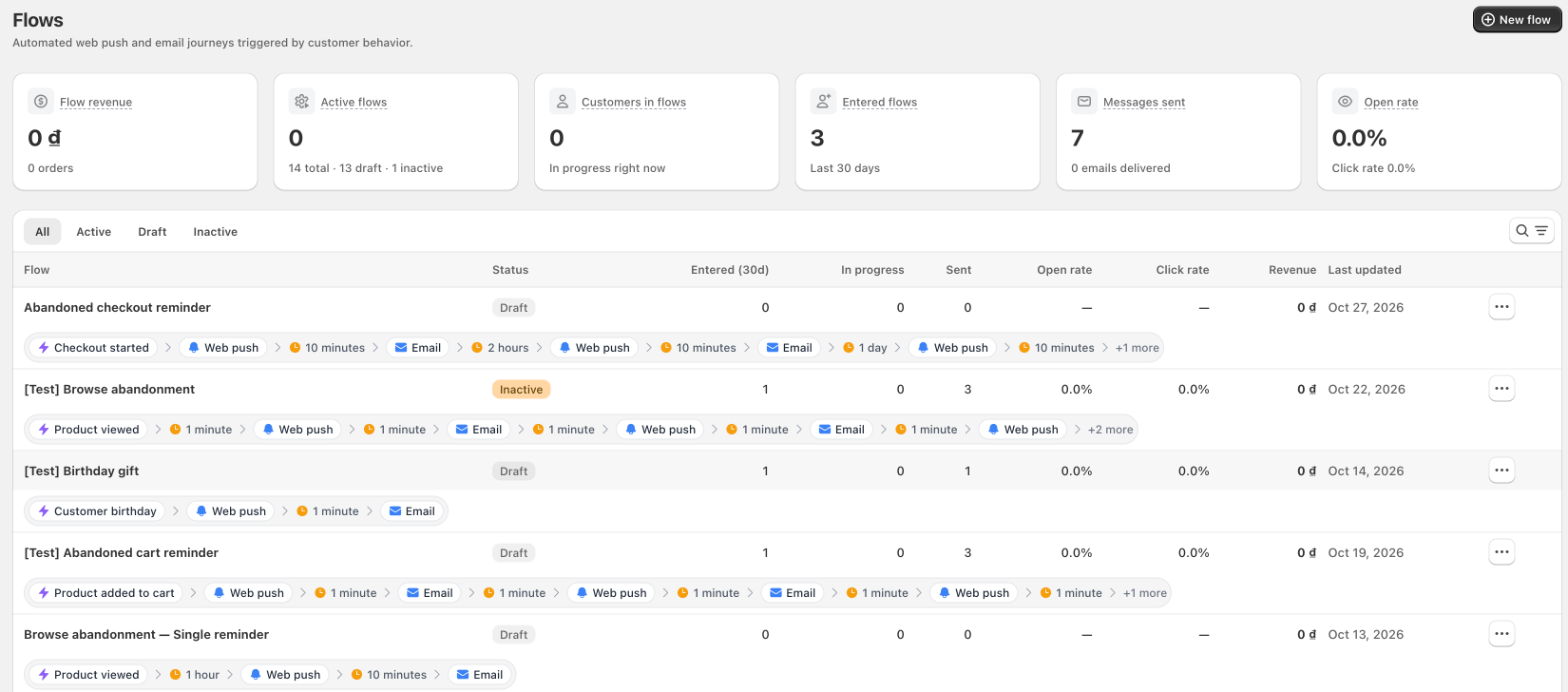
From the ⋯ menu of a flow you can edit, duplicate, turn on or off, or delete it.
Plans
| Plan | Available triggers |
|---|---|
| Free | Customer subscribed (welcome) and Product added to cart (abandoned cart) |
| Starter | Everything except Product viewed and Product created |
| Premium | Everything except Product created |
| Pro | Everything. Product created also needs campaign sending to be enabled for your store — contact support. |
A trigger that your plan does not include is shown with a lock in the builder, and the flow cannot be turned on.
Next steps
- Create your first flow
- Browse the template library
- Use case guides, such as abandoned cart recovery