
Page Content
Two pages in Uppush are shown to your customers rather than to you, and both are worth a few minutes of editing. They carry your branding, and one of them is the last thing a departing subscriber ever reads from you.
Find them under Settings → Page content.
Unsubscribe page
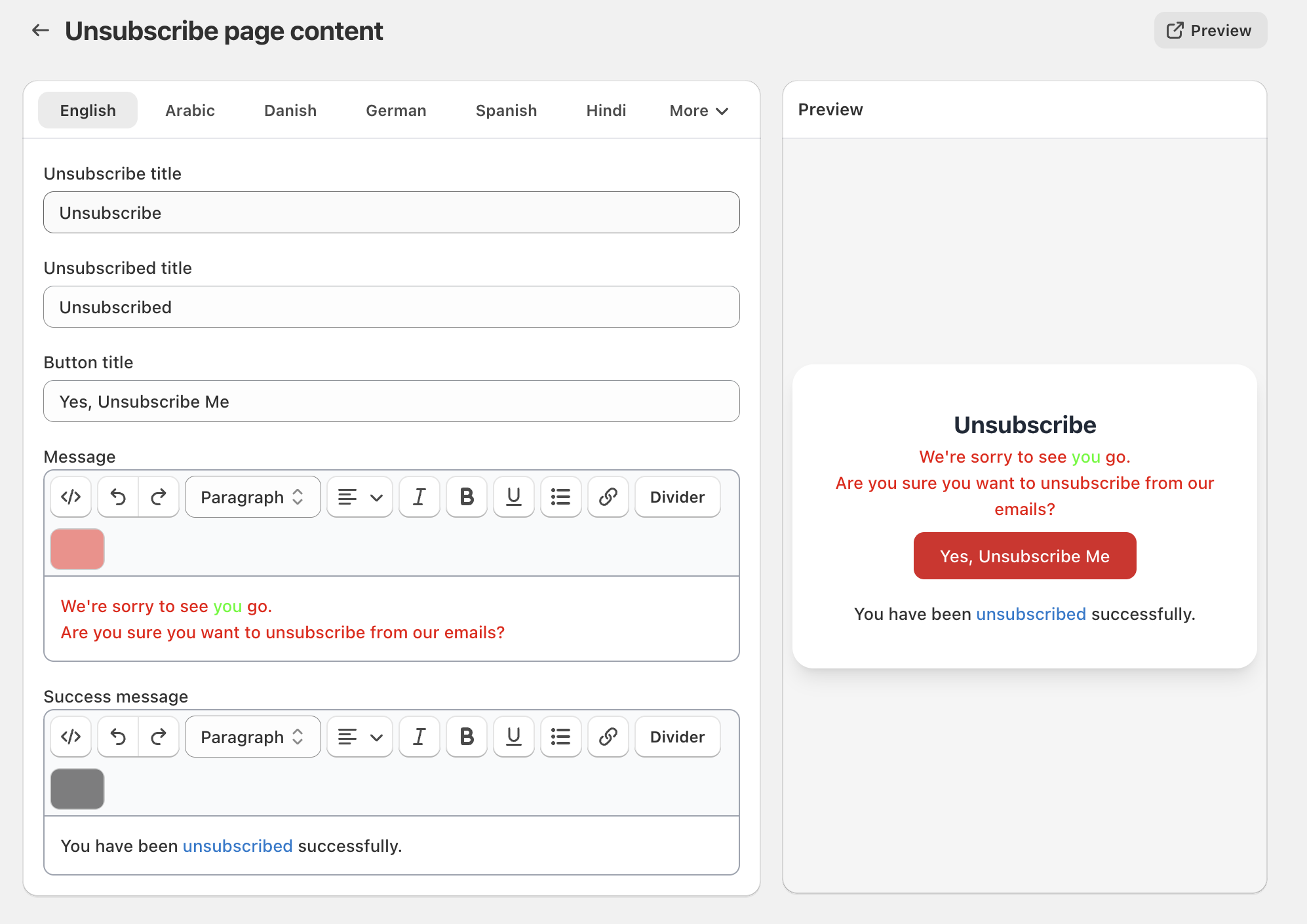
Where a customer lands after clicking the unsubscribe link in one of your emails. You can edit:
- Unsubscribe title — the heading shown before they confirm
- Unsubscribed title — the confirmation shown afterwards
- Button title — the label on the confirm button
Why bother
Most stores leave this at the default and lose people who did not really want to leave. A customer who unsubscribes is usually not rejecting you outright — they are reacting to the last email, or to how many they have had lately.
Wording that acknowledges this keeps some of them. "You will not hear from us again" is a door closing. "We send about two emails a month — is that too many?" invites a different answer.
Keep it short and keep it honest. Never make unsubscribing hard: an unsubscribe is an outcome you want, because the alternative is a spam complaint, which costs you far more.
iOS PWA guide
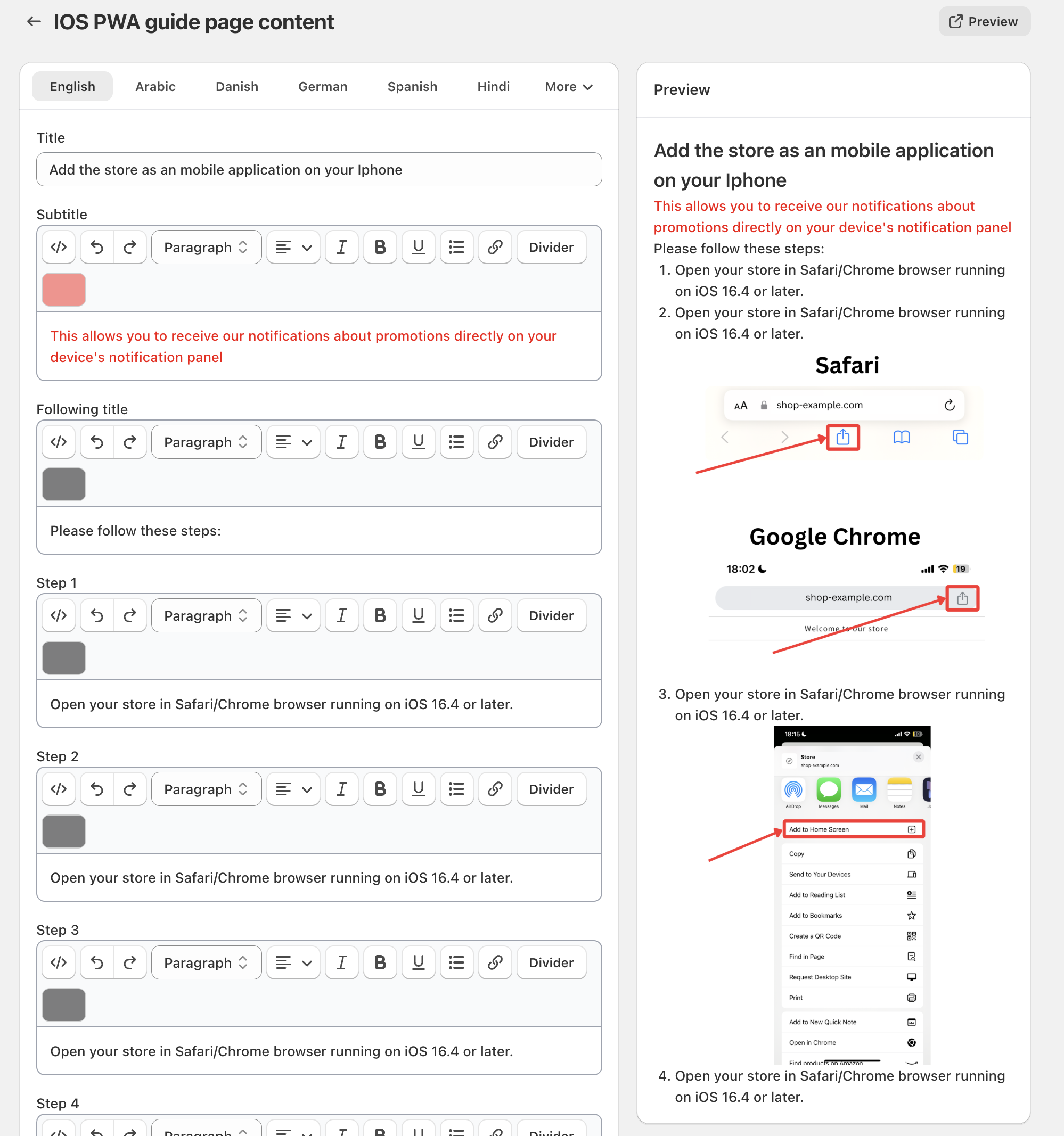
Where iPhone users are sent to learn how to add your store to their home screen.
This one is not cosmetic. iOS does not allow web push notifications from an ordinary Safari tab — the site must be added to the home screen first. Without that step, an iPhone visitor simply cannot subscribe to your push notifications.
You can edit the title and the guide content so the instructions match your store's language and branding.
Why bother
iPhone users are a large share of most Shopify stores' traffic, and the home screen step is unfamiliar to almost all of them. A confusing guide here is the difference between gaining iOS push subscribers and gaining none.
Keep the steps in the same order Safari presents them, and match the exact button names iOS uses — a customer looking for "Add to Home Screen" who reads "Install app" will give up.
See also WPA - Web App Applications and Why doesn't the app work on my iPhone?
Notes
Both pages inherit your logo and branding from Settings → Logo, so they look like part of your store without extra work.
Changes take effect immediately. They apply to links in emails already sent, because the page is rendered when the customer opens it.
Test the unsubscribe page yourself. Send a test email, click the unsubscribe link and read the page as a customer would. It is one of the few pages you will never see by accident.
Troubleshooting
Edits do not show on the unsubscribe page.
Reload the page rather than using a cached tab, and confirm you saved. If you have several stores connected, check you edited the right one.
iPhone customers still cannot enable notifications after following the guide.
They must open your store from the home screen icon, not from Safari, before the permission prompt can appear. Make sure the guide says so — it is the step most people miss.