
A/B Test Email Campaign
Create an A/B test email campaign to compare two versions and automatically send the best-performing one to the rest of your audience.
Send an A/B Test Email Campaign
An A/B test lets you compare two versions of an email (Variant A and Variant B) on a small part of your audience first. After a short test window, Uppush automatically picks the winner and sends it to everyone who is left — so your main audience always gets the better-performing email.
How it works
An A/B test runs in three automatic steps:
- Test phase — A small test group (a percentage of your audience that you choose) is split evenly between Variant A and Variant B.
- Pick the winner — After the test duration ends, Uppush compares the two variants using your chosen winning metric and selects the winner automatically.
- Send the winner — The winning variant is sent to the rest of the audience (everyone who was not in the test group).
                ┌─ Variant A ─┐
Test group ─────┤             ├──▶  compare ──▶  Winner ──▶  Remaining audience
(e.g. 20%)      └─ Variant B ─┘     (after test
                                     duration)
What can differ between variants?
Each variant can have its own subject line, preview text, sender (name / address / reply‑to), and email template (content). Everything else — audience, schedule and A/B settings — is shared.
Create an A/B test campaign
- Go to Campaigns.
- Click New campaign → A/B test email.
- Fill in the sections below, then click Save A/B draft.
1. Name
A name to identify the campaign internally (your customers never see it).
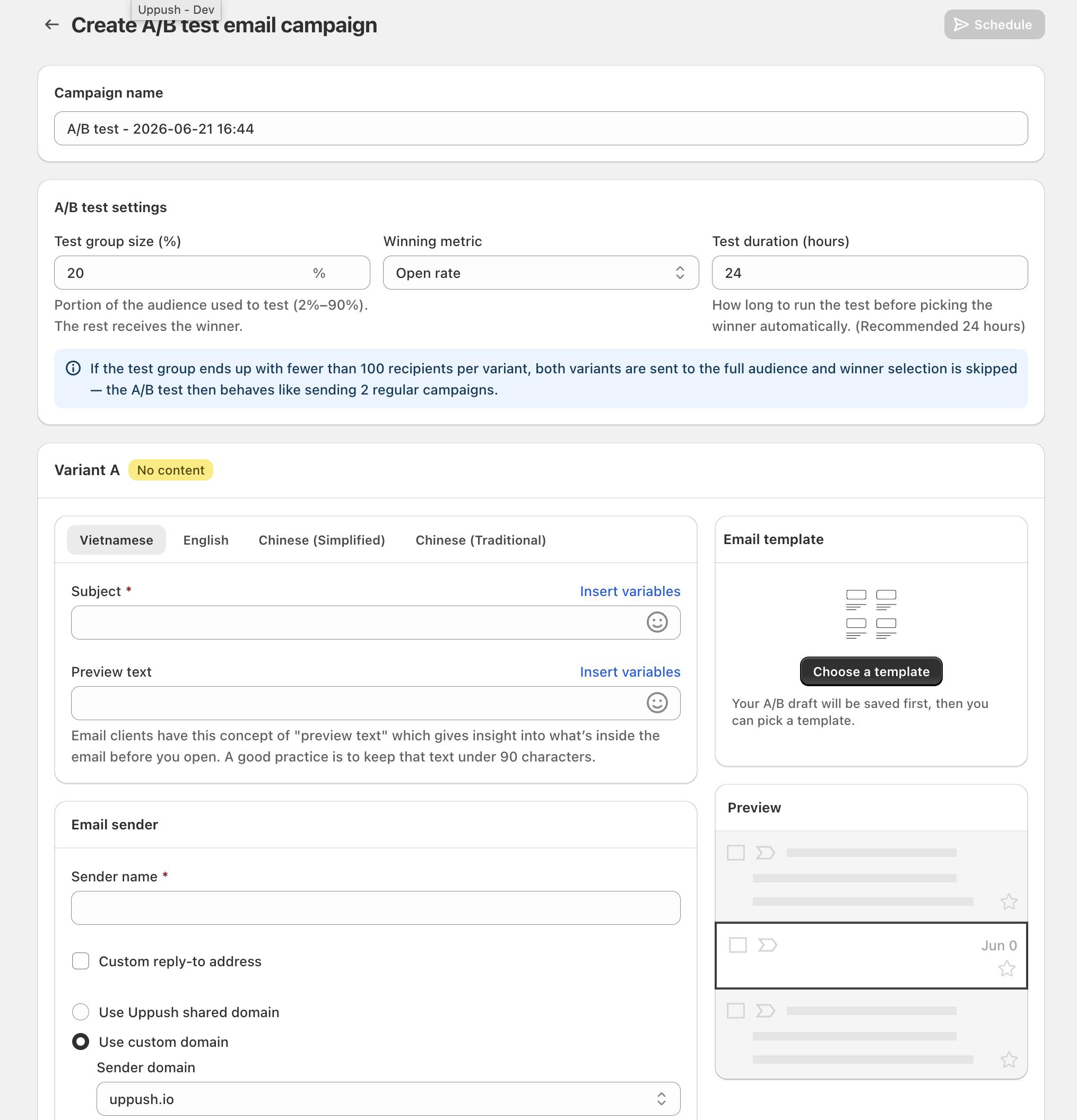
2. A/B test settings
| Setting | Description |
|---|---|
| Test group size (%) | The share of your audience used for the test, split evenly between A and B. Must be between 2% and 90%. The rest of the audience receives the winner. |
| Winning metric | How the winner is chosen: Open rate, Click rate, or Revenue. |
| Test duration (hours) | How long the test runs before the winner is picked automatically. 24 hours is recommended so you collect enough opens/clicks. |
Small audiences
If the test group ends up with fewer than 100 recipients per variant, Uppush sends both variants to the full audience and skips winner selection — the campaign then behaves like sending two regular campaigns. Pick a larger test group size (or audience) if you want a real winner to be chosen.
3. Variants (A and B)
Each variant is shown as its own block (Variant A on top, Variant B below). For each variant set:
- Subject (required to send)
- Preview text
- Sender — sender name, sending domain/address and (optionally) a custom reply‑to
The email template (content) is added after you save the draft — see Edit a variant's template.
4. Recipients
Choose who the campaign targets:
- All subscribed customers
- Uppush segment
- Shopify segment
INFO
Abandoned‑checkout targeting is not available for A/B tests.
5. Schedule
- Send now — the test phase starts immediately.
- Schedule — choose a date/time (and timezone) for the test phase to start.
Edit a variant's template
The email content is edited per variant using the same editor as a regular campaign.
- Save the A/B draft first (the Choose a template button saves it for you automatically).
- On each variant, click Choose a template to start from a template, or Edit template to open the editor.
- Use Change template to switch to a different template at any time.
TIP
A variant card shows a Content ready / No content badge so you can see at a glance which variants still need content.
Send a test email
Before sending the campaign, you can email yourself a preview of each variant:
- On a variant, open the ⋯ menu and click Send test email.
- Choose the address (must be one of your own verified emails) and language, then Send.
The test email uses each variant's subject, sender and content, so make sure those are filled in — Uppush validates them before sending the test.
Send the A/B test
- Click Send A/B test (or Schedule A/B test).
- A Review & send window shows a summary: audience, schedule, A/B settings and each variant's subject and sender.
- Confirm to start.
Before you can send
Each variant needs a subject, a sender name, and email content. If something is missing, the confirmation closes and the page scrolls to the field that needs fixing.
After sending, the campaign status becomes A/B testing while the test group goes out, then Selecting winner while the winner is chosen and sent to the remaining audience, and finally Sent.
View results
Open the campaign from the Campaigns list to see its report.
- A/B test results — a side‑by‑side comparison of Variant A and Variant B (sent, open rate, click rate). The winning variant is marked with a Winner badge.
- Overview, Engagement, Customer activity, Conversions, Link activity — these tabs show the combined totals of both variants for the whole A/B test.
INFO
In the campaigns list, an A/B campaign is marked with an A/B badge. Its metric columns show the sum of both variants.
Manage A/B campaigns
- Edit — only a draft A/B test can be edited. Editing opens the A/B editor (not the regular campaign editor).
- Duplicate — creates a fresh draft copy, including both variants.
- A/B settings (test group size, winning metric, test duration) can only be changed while the campaign is a draft.
Frequently asked questions
Do my customers receive two emails? No. Each recipient receives exactly one email — either a variant (if they're in the test group) or the winning variant (if they're in the remaining audience).
What if the two variants perform almost the same? Uppush still picks a winner using your winning metric; ties are broken in a stable, deterministic way so a winner is always chosen.
Can I change the test group size after sending? No. A/B settings are locked once the campaign leaves draft. Duplicate the campaign to start over with new settings.
Why does my A/B campaign show 0 in the list before sending? Metrics only appear after the campaign starts sending and recipients open/click. Before that, the list shows the placeholder “Subject & content are set per variant”.