
Email Segments
A segment is a saved set of conditions, not a saved list of people. You describe who you want — "bought more than once in the last 90 days", "opened an email but never ordered" — and Uppush works out who matches every time you use it. Add a customer to your store tomorrow and they join the segment on their own.
This is what lets you stop sending the same email to everyone. A discount aimed at people who have never bought is wasted on your best customers, and a win-back message annoys someone who ordered last week.
Where to find them
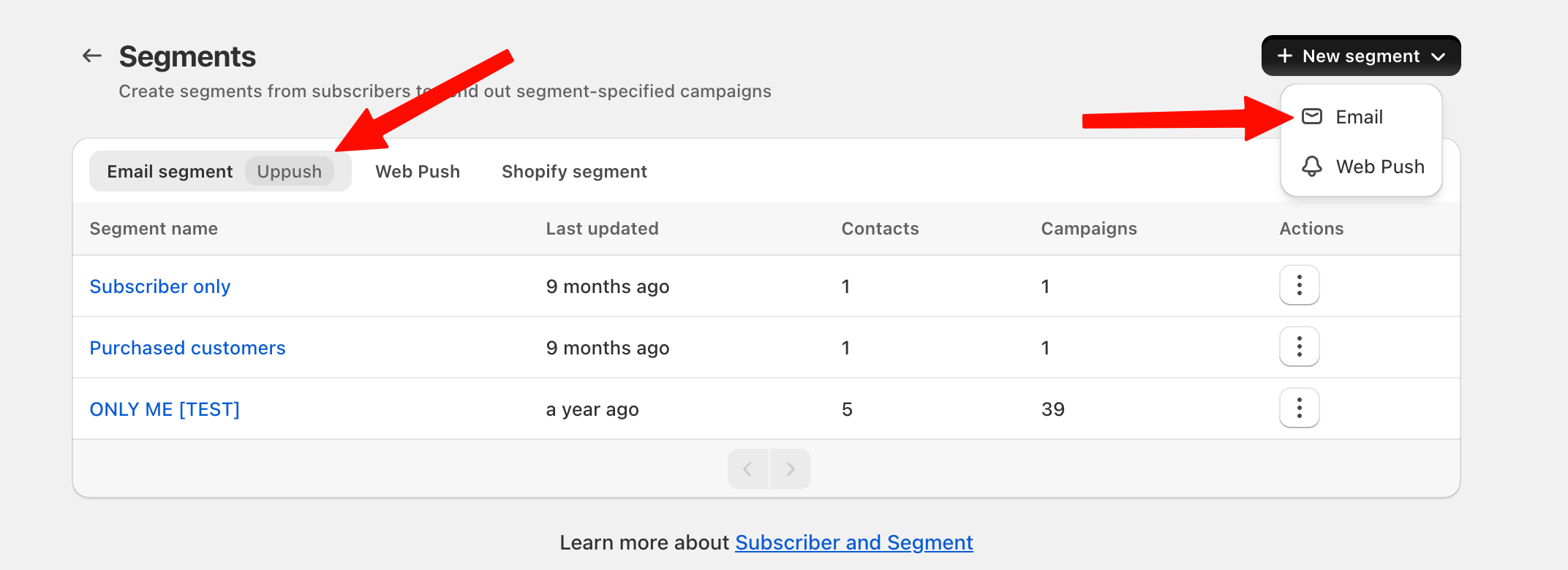
Go to Subscribers → Segments. There are three tabs:
- Email segment — built in Uppush, covers everything on this page. Use these for email campaigns.
- Web Push — segments for push notification campaigns, based on device, browser and location. See Segment for Web Push Campaign.
- Shopify segment — segments you already created in Shopify admin. Uppush can read them, but you edit them in Shopify.
To create one, click New segment and choose Email.
Start from a template
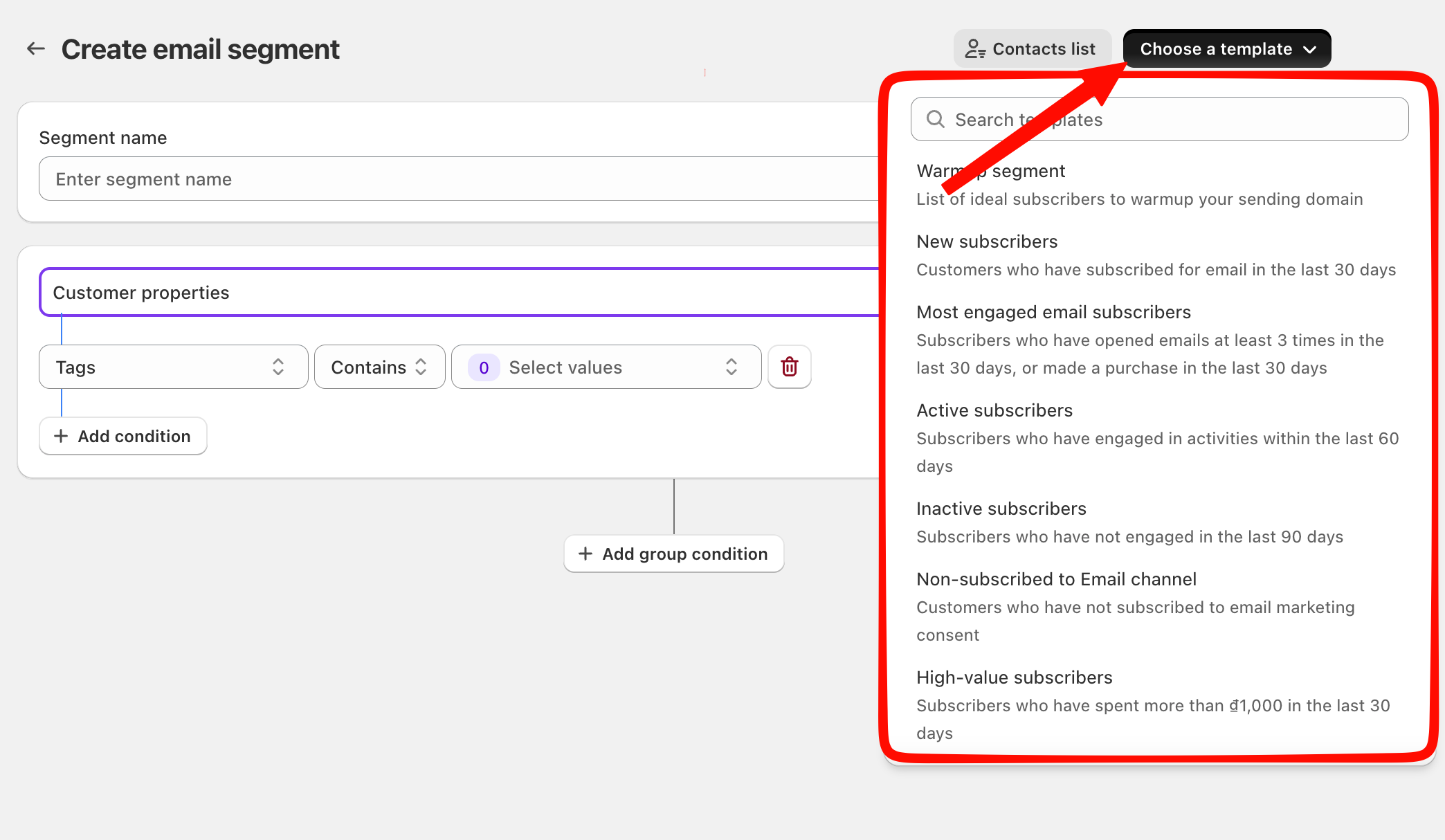
Before building anything by hand, open Choose a template at the top right of the segment editor. Uppush ships with ready-made segments for the situations most stores need:
| Template | Who it finds |
|---|---|
| New subscribers | Joined your list recently |
| Active subscribers | Opened or clicked an email lately |
| Inactive subscribers | On your list but not engaging |
| Most engaged email subscribers | Your best openers and clickers |
| Non-subscribed to Email channel | On your list without email consent |
| High-value subscribers | Have spent the most with you |
| High-potential buyers | Engaged a lot, have not bought yet |
| Recent buyers | Ordered in the last few weeks |
| Long time no buy | Bought before, gone quiet since |
| Frequent buyers | Order again and again |
| VIP subscribers | Spend a lot and buy often |
| Discount lovers | Only order when there is a code |
| Viewed a specific product | Looked at a product you pick |
| Abandoned checkout | Started checkout, never finished |
| Warmup segment | Safe recipients for warming a new sending domain |
| Subscribers based in USA/Canada | By country |
| Subscribers based in Europe | By country |
| Subscribers based in Australia | By country |
Picking a template fills in the name and every condition. You can then change anything before saving — a template is a starting point, not a locked preset.
Build a segment from scratch
Click Add group condition and pick a category. Each group you add is a block of conditions.
The five categories
Customer properties — facts about the person, taken from their Shopify customer record: email, name, phone, address, country, province, city, tags, company, gender, birthday, locale, when they were created, total spent, number of orders, metafields, and their email marketing consent.
It also covers list health: marked as dummy, unsubscribed, reported as spam, permanently bounced, soft bounced. These are useful for cleaning a list — for example, everyone who has soft bounced more than once.
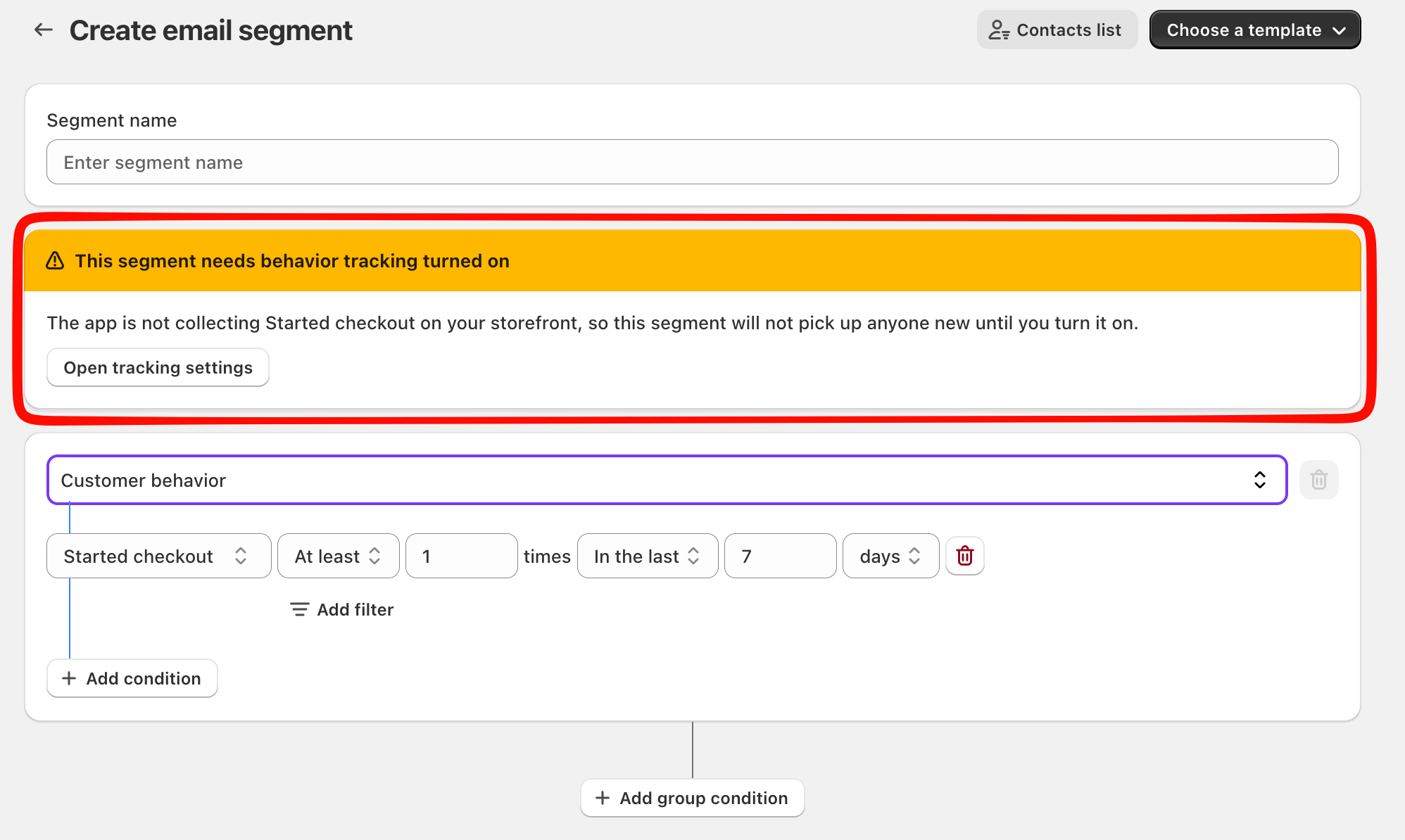
Customer behavior — what they did on your storefront: Viewed page, Viewed product, Added to cart, Started checkout. You can filter each one by product title, SKU, vendor, price, or by page title and URL.
Behavior conditions need tracking turned on
Uppush only collects storefront behavior when you switch it on in Settings → Activity tracking, and it is a Pro feature. A segment using these conditions still saves, but it finds nobody until the matching behavior is being collected. See Customer activity tracking.
Order — what they bought:
Order placed, Order paid, Order fulfilled, Order canceled, Order refunded, and Product placed for conditions about the items themselves. Filter by order total, discount used, total discount, item count, order tags, shipping method, source, or by product title, SKU, vendor, tags, collection, quantity and price.
Subscribed — people who asked to be told about a specific product: Subscribed to back in stock and Subscribed to price drop.
Email engagement — how they treat your emails: Sent, Delivered, Opened, Click on email, Bounced, Marked email as spam. Filter by subject line, whether it was a campaign or an automation, device, browser, the link they clicked, and the bounce or complaint type.
AND and OR, and why there are two of them
This trips people up more than anything else in the segment builder, so it is worth being precise.
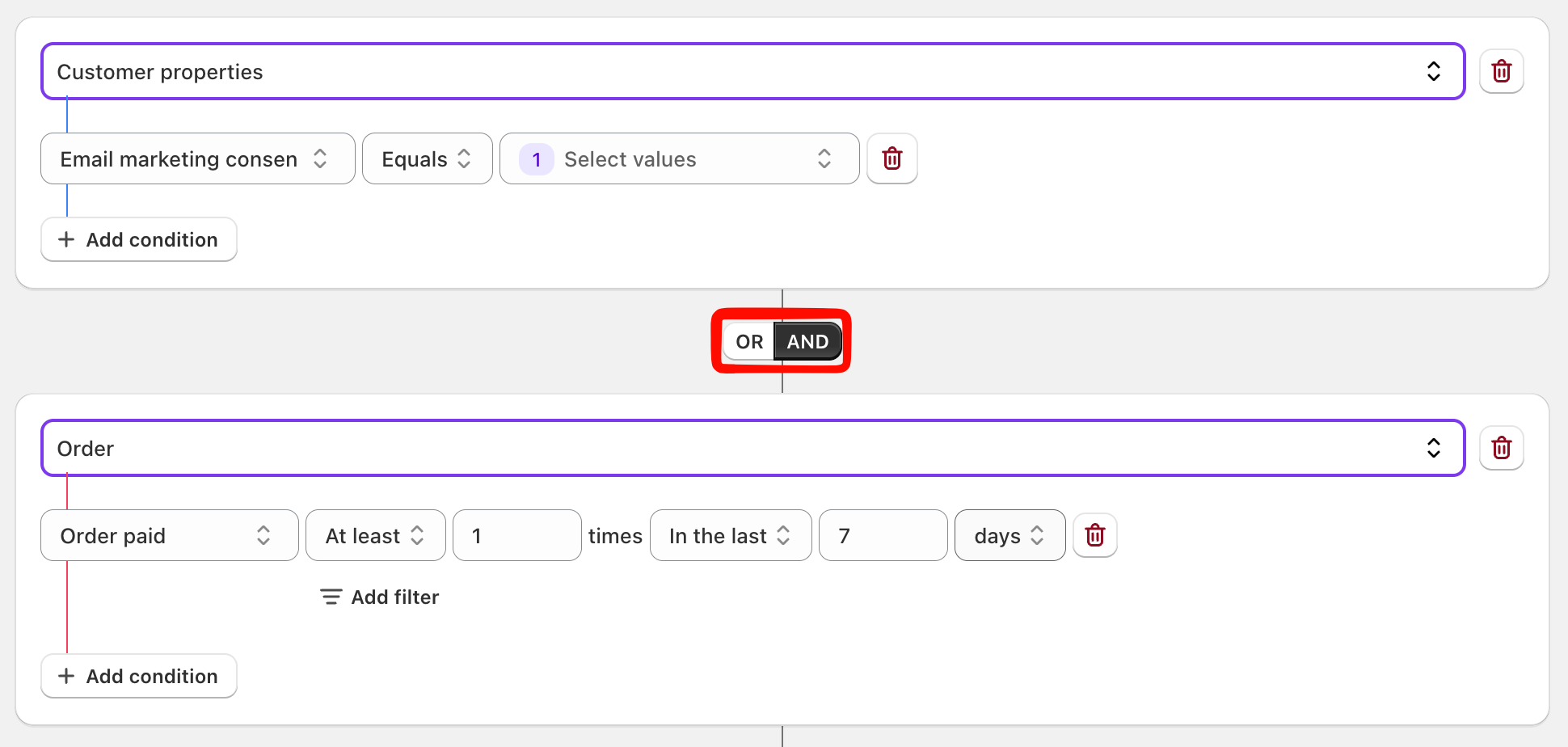
Inside a group, the AND/OR toggle joins the conditions in that one group. Two conditions in an Order group joined with AND both have to be true of the same order behaviour.
Between groups, a separate AND/OR toggle joins whole groups together.
The practical rule: put conditions that describe the same thing in one group, and use separate groups for different things.
Take "customers in Germany who spent over €200 and have not opened an email in 60 days":
- Group 1 — Customer properties: Country equals Germany AND Total spent greater than 200
- AND
- Group 2 — Email engagement: Opened email, at most 0 times, in the last 60 days
Splitting it across two groups is not a style choice. Country and total spent belong to the customer, while opening an email is an event with its own time window, so they cannot sit in the same group.
Counting and time windows
Behavior, Order, Subscribed and Email engagement conditions all work the same way: how many times, within what period.
For the count, choose Equals, Greater than, Less than, At least or At most. Setting Equals 0 is how you express "never" — "Order placed, equals 0 times, over all time" is your never-purchased segment.
For the period, choose:
- In the last / Not in the last — a rolling window, in days, weeks or months. This is what you usually want. A segment set to "in the last 30 days" always means the last 30 days from today, so it keeps working months from now without being edited.
- Between two dates, After a date, Before a date, Exact date — a fixed window. Useful for a specific sale period, but it will not age well as an evergreen segment.
- Over all time — no limit.
Customer properties behave a bit differently: dates such as Created at and Birthday use the same operators, while text fields use Contains, Does not contain, Starts with, Ends with, Equals, Does not equal, Exists and Does not exist.
Check the segment before you save it
Click Contacts list at the top of the editor. It runs the conditions immediately and shows you the actual people who match.
Always do this. A condition that reads correctly can still be wrong, and an empty contacts list is far cheaper to discover now than after you schedule a campaign to it.
If you get zero results, the fastest way to find the culprit is to delete conditions one at a time until people appear.
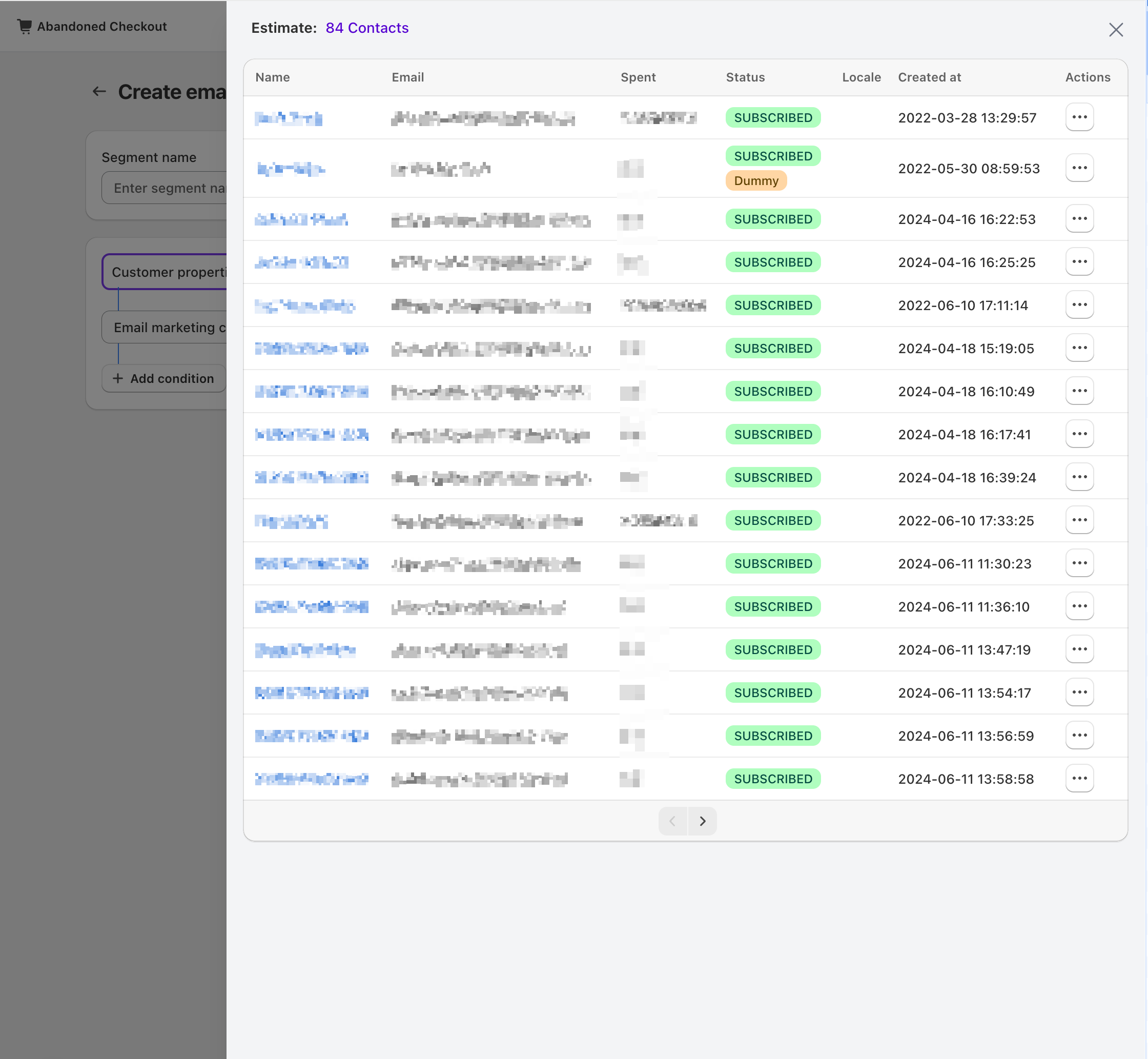
Checking who matches before saving
Use a segment in a campaign
When you create an email campaign, choose Uppush segment as the recipient type, then pick one or more segments. You can also set excluded segments — anyone in an excluded segment is skipped even if they match the segments you included.
Exclusion is the cleanest way to handle overlap. To email everyone who has not bought recently, include your full list and exclude Recent buyers rather than trying to write "has not bought" into every condition.
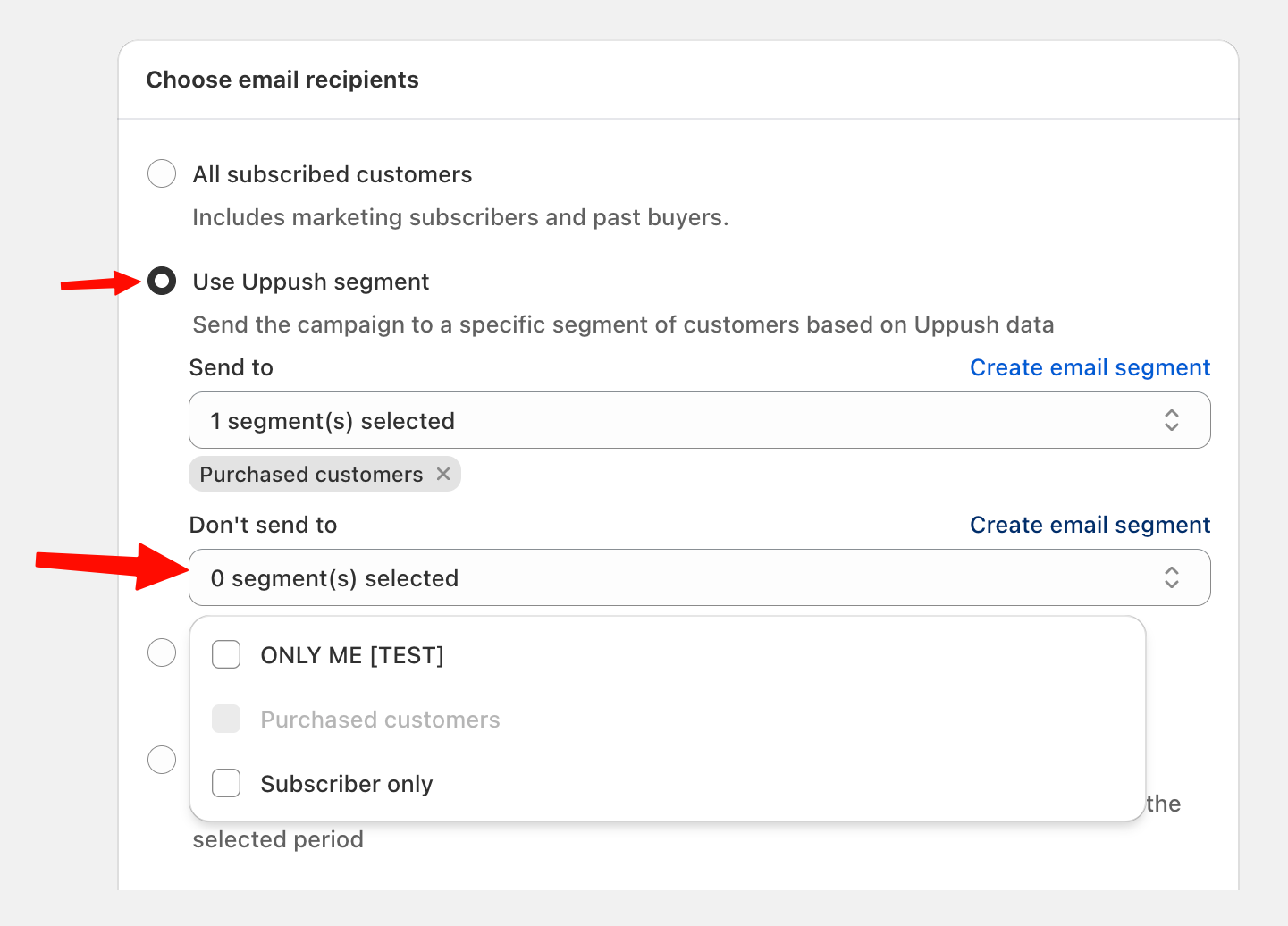
Recipients are worked out when the campaign sends, not when you build the segment. A scheduled campaign therefore goes to whoever matches at send time, which is normally what you want — but it also means a segment edited after scheduling changes who receives the campaign.
Managing your segments
From the segments list you can:
- Edit — change conditions at any time. Past campaigns are not affected; future ones use the new conditions.
- Duplicate — copy a segment and adjust it. Much safer than editing one that campaigns already point at.
- View contacts — open a segment to see who is in it right now.
- Export contacts — download the members as a file. Pro plan only.
- Delete — remove a segment. Check it is not attached to a scheduled campaign first.
Notes
A segment is a rule, not a snapshot. Membership is recalculated every time it is used, so segments stay current on their own.
Segments only ever contain your existing contacts. They filter your list, they do not add anyone to it.
Behavior and engagement data is kept for 180 days. A condition such as "viewed a product in the last 12 months" cannot match further back than that.
Email segments are for email campaigns. Push notification campaigns use Web Push segments, which are built from device and location data instead.
Troubleshooting
The contacts list is empty but the conditions look right.
Check each condition's time window first — "in the last 7 days" is a common accident when you meant 90. Then check whether any group uses AND where you meant OR: two groups joined with AND require both to be true of the same person, which quickly narrows a segment to nobody.
A segment with Customer behavior conditions finds nobody.
The behavior it needs is almost certainly not being collected. Open Settings → Activity tracking and confirm the matching behavior is switched on. Storefront tracking is off by default and only collects from the moment you turn it on, so there is no history for the period before that.
The number of contacts keeps changing.
That is expected. The segment is re-evaluated each time you open it, and customers move in and out as they order, open emails and browse your store.
Someone in the segment did not receive the campaign.
Being in a segment is not the same as being sendable. Unsubscribed contacts, hard bounces, spam complainers and addresses on your blocked domains list are skipped at send time. The campaign report shows the difference between the segment size and the number actually sent.