
Actions
Action steps are the ones your customers notice. There are three:
- Send push notification
- Send email
- Manage tags
Click an action step in the builder to open its settings in the panel on the right.
Send push notification
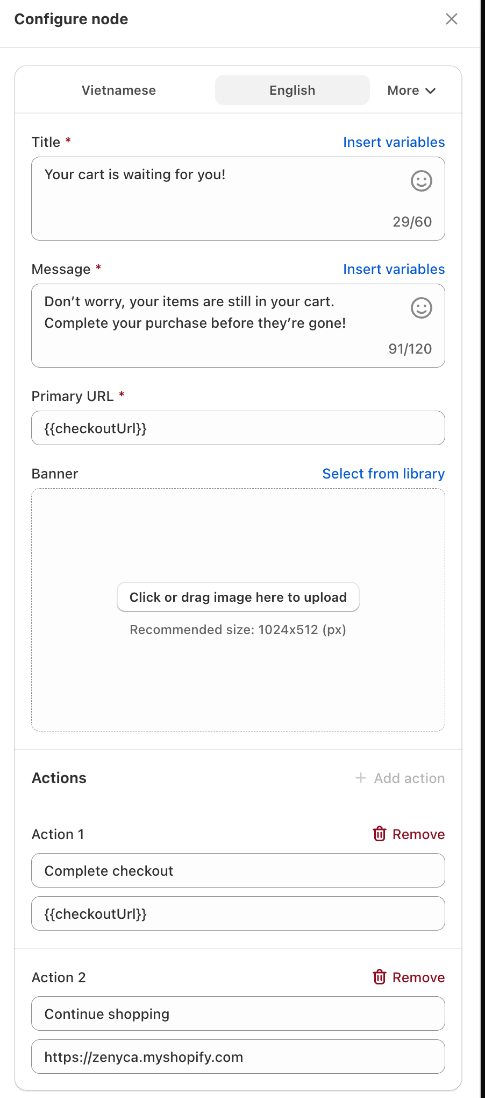
| Setting | What it does |
|---|---|
| Title | The bold first line of the notification, up to 60 characters. |
| Message | The text under the title, up to 120 characters. |
| Banner | An optional large image. Upload one or choose from the library. Recommended size: 1024 × 512 px. |
| Primary URL | The page that opens when the shopper clicks the notification. |
| Actions | Up to 2 buttons, each with its own title and Redirect URL. |
Click Insert variables to add details from the event, which are filled in when the notification is sent:
| Variable | Filled with |
|---|---|
| The product the flow is about (back in stock, price drop, browse…) |
| The new price and the price when the shopper subscribed (price drop) |
| The product page |
| The shopper's own checkout, to continue where they left off (abandoned checkout) |
| Order and shipping details (order and fulfillment triggers) |
If a detail is not available for the trigger, the variable is left empty.
Web push notifications only reach shoppers who allowed notifications from your store. Shoppers who did not simply skip this step.
Send email
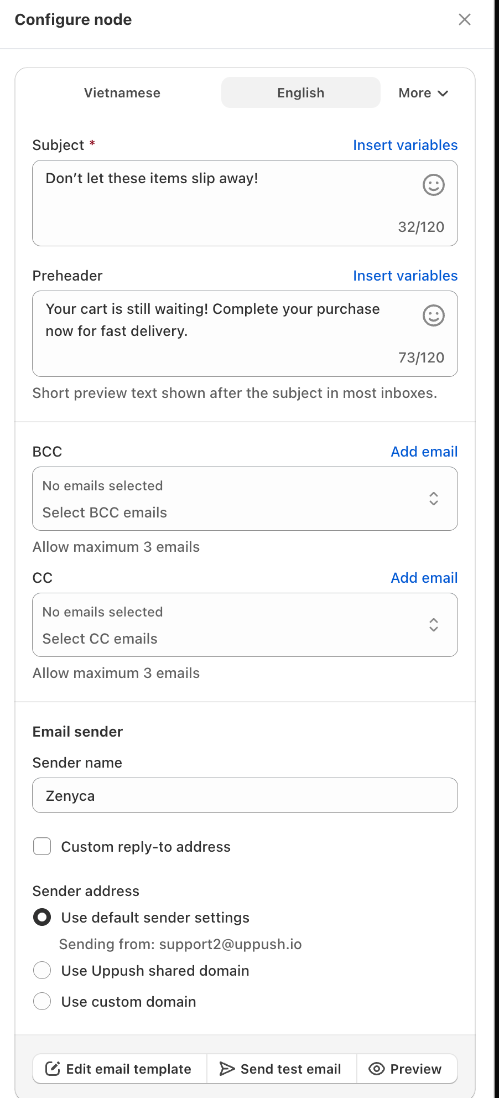
- Email template. Templates created from the library already have a designed email. For a new step, click Choose email template and pick a design. Click Edit email template to change it in the email builder, and Preview to see the result.
- Subject and Preheader. The preheader is the short text shown after the subject in most inboxes. Both accept variables (Insert variables) and emojis.
- Email sender. Set the Sender name, optionally a Custom reply‑to address, and the Sender address: Use default sender settings, Use Uppush shared domain or Use custom domain. Sending from your own verified domain gives the best delivery — see Verify custom domain & set up email sender.
- CC and BCC (optional). Send a copy of every email from this step to up to 3 addresses each, for example your support inbox. See Using CC and BCC.
- Send test email. Click Send test email at the bottom of the panel and enter your address to receive the email. The flow must be saved first.
Product and order blocks
Emails can show what the flow is about — the abandoned cart, the viewed products, the product back in stock, the shipping and billing address of the order. Add these blocks in the email builder; they fill themselves in with each customer's data when the email is sent. See Event‑based items.
Because emails are built at the moment they are sent, they always use the latest version of your template and the latest cart.
Who receives emails
Emails go to the customer's email address, except when the customer:
- unsubscribed from your marketing emails, or
- has an address that bounced or reported your emails as spam.
On the Free plan, emails also stop when your free email allowance is used up — see Email pricing and billing.
Manage tags
Adds or removes customer tags in Shopify when the shopper reaches this step.
- Click Add tag action.
- Choose Add or Remove and enter the Tag name.
- Add as many tag actions as you need.
Use tags to mark customers for other tools, for Shopify customer segments, or to start another flow with the Customer tag added trigger. A tag added by a flow does not start that same flow again.
Tag steps are not affected by the sending window and run right away.
Discounts
You can attach a discount to the whole flow, or to a single step.
- Flow discount — click Discount at the top of the builder. It applies to every email and push in the flow.
- Step discount — in a push or email step, turn on Override flow discount for this step to use a different one there.
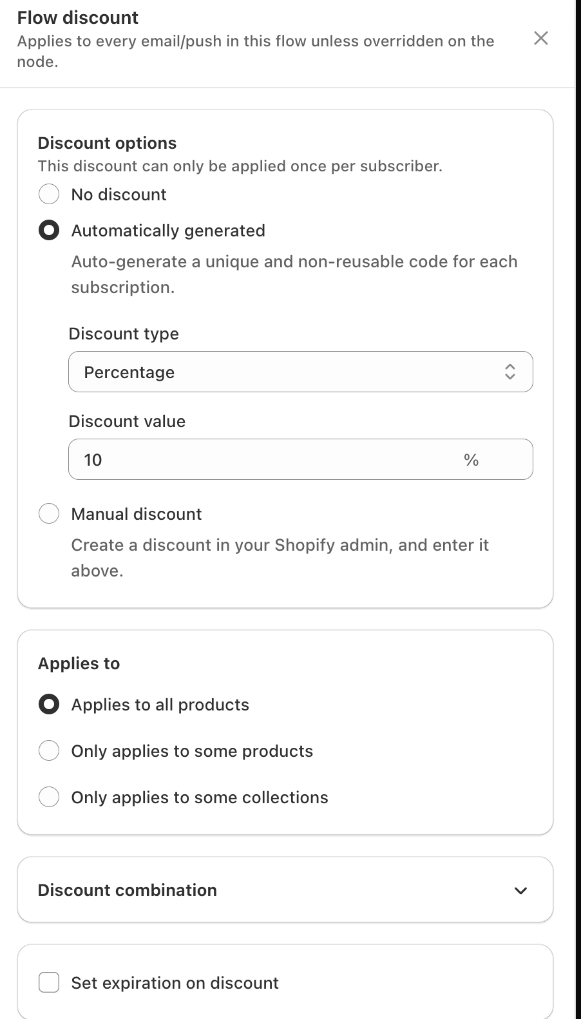
Discount options:
| Option | Meaning |
|---|---|
| No discount | No code. |
| Automatically generated | A unique, one‑time code is created for each customer. Choose the Discount type (percentage, fixed amount or free shipping), the Discount value, and optionally Set expiration on discount (in days). |
| Manual discount | Everyone gets the same code that you created in your Shopify admin. |
| Popup discount | Welcome flows only. The customer gets the discount of the popup they subscribed through. |
How the code reaches the customer:
- Email — the code appears where the email template has a Discount block. An email without a Discount block does not include a code.
- Push — the code is applied automatically through the notification's link.
With Automatically generated you can also choose what the discount Applies to (all products, some products or some collections) and how it combines with other discounts (Discount combination).
A customer gets one code per flow run, reused in every message of that run. Read more in How to set up discount codes.
Languages
Push and email steps have a tab for each language published in your store. Each customer receives the message in their own language — for shoppers who abandon a cart, the language they were browsing in.
Messages created from templates are already translated. To edit a translation, select its language tab and change the text; for emails, choose the language in the email builder.
To add a language, publish it in your Shopify admin under Settings → Languages. See Multi‑language auto‑translate for screenshots of this setting.
Related
- Flow steps — waits, conditions and A/B splits
- Test your flow
- Email sender