
Flow reports and execution log
Uppush shows flow results at three levels: all flows together, one flow, and one customer's journey through a flow.
All flows: the Flows page
The cards at the top of the Flows page sum up every flow:
| Card | Meaning |
|---|---|
| Flow revenue | Revenue from orders placed after a customer clicked a flow message, or engaged with a flow email, within your sales attribution window. |
| Active flows | Flows that are turned on and accepting new customers. |
| Customers in flows | Customers currently moving through a flow — running or waiting on a delay. |
| Entered flows | How many times customers entered a flow in the last 30 days. |
Each flow in the list also shows how many customers entered in the last 30 days, how many are In progress right now, messages sent, open rate and click rate. Open and click rates are opened and clicked messages divided by messages sent, for push and email together.
One flow: metrics, analytics and the full report
Metrics on the canvas
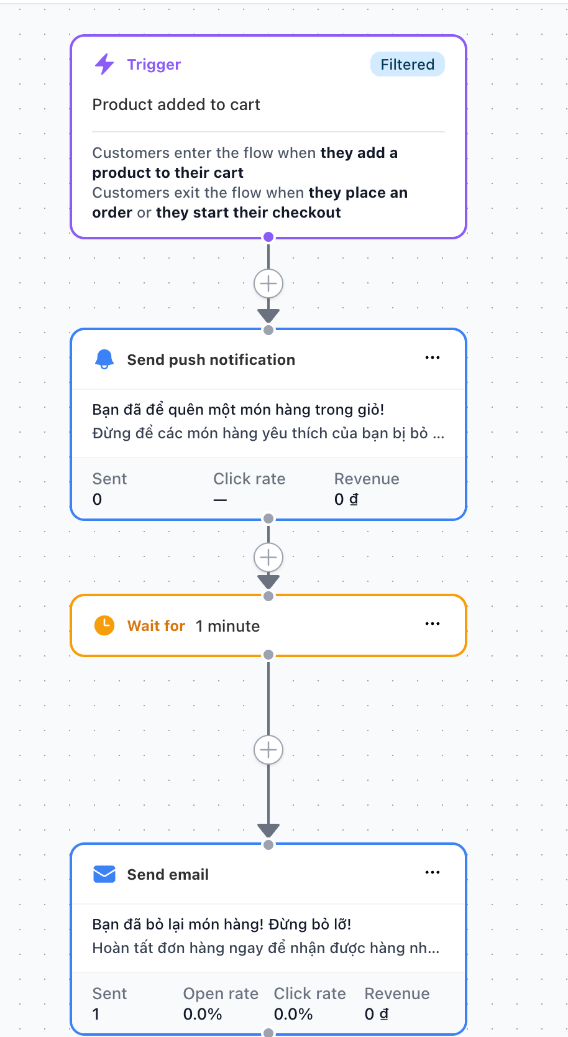
In the builder, turn on Show metrics. Every push step then shows sent, click rate and revenue, and every email step also shows the open rate — handy for comparing the two paths of an A/B test.
Analytics panel
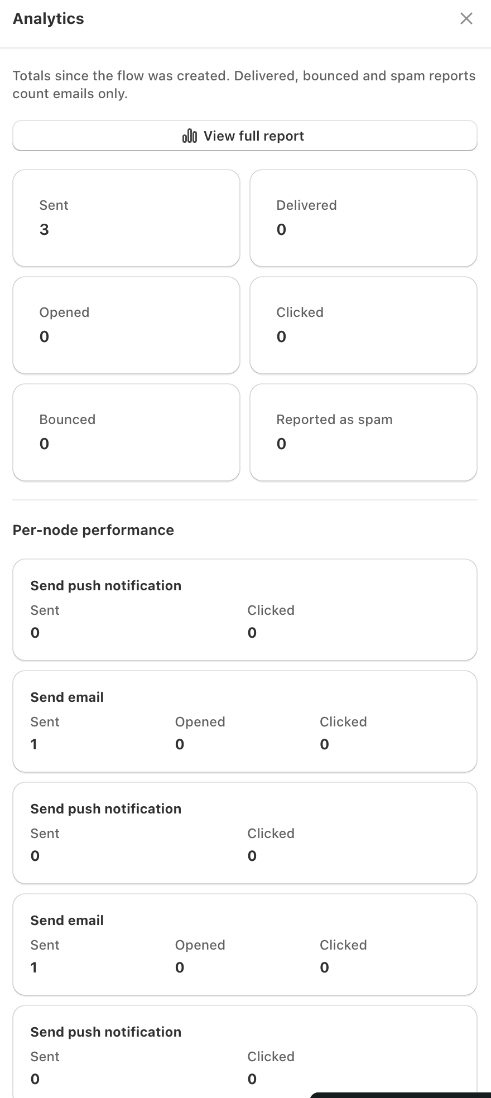
Click Analytics in the builder for the flow's totals since it was created — sent, delivered, opened, clicked, bounced and reported as spam — and a per‑node performance table. Delivered, bounced and spam reports count emails only.
Full report
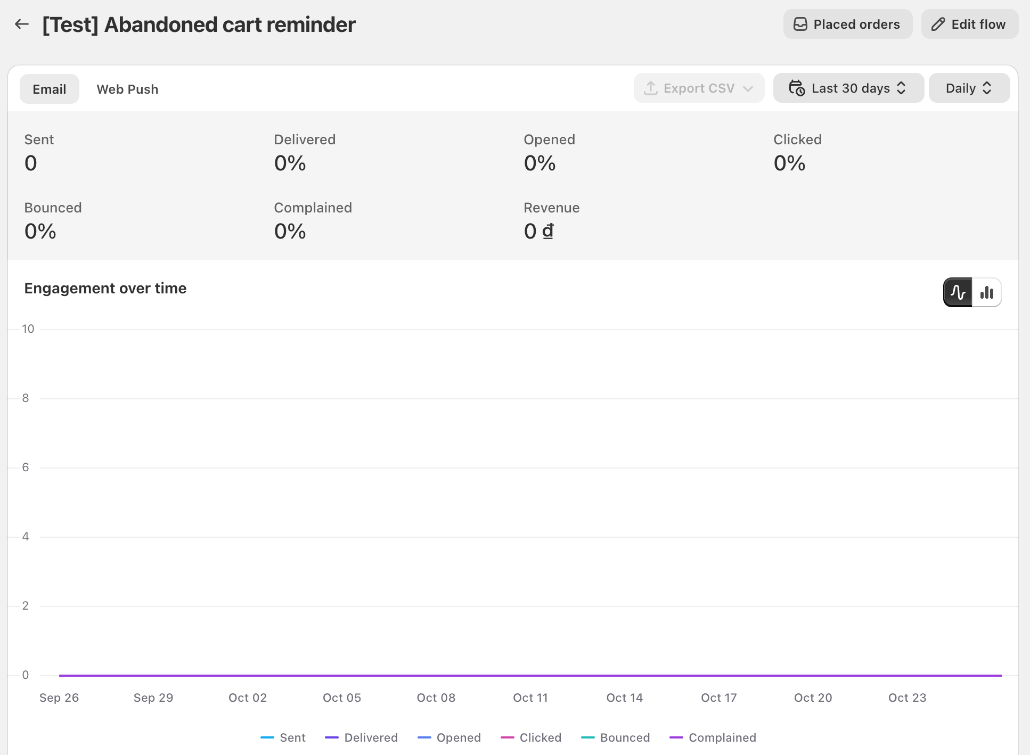
Click View full report in the Analytics panel, or open Reports and choose the Flows tab. The flow report has:
- an Email tab and a Web Push tab, each with its totals (sent, delivered, opened, clicked, bounced, complained, revenue),
- Engagement over time and Revenue over time charts, for the period you choose (for example Last 30 days, by day),
- Placed orders — the orders credited to the flow,
- Export CSV to download the data, and Edit flow to go back to the builder.
Web push data is available for the last 90 days.
Messages from your old automations
If a flow was converted from an old automation, messages the automation had already scheduled are still delivered. Their opens, clicks and revenue are counted in the flow's report.
One customer: the execution log
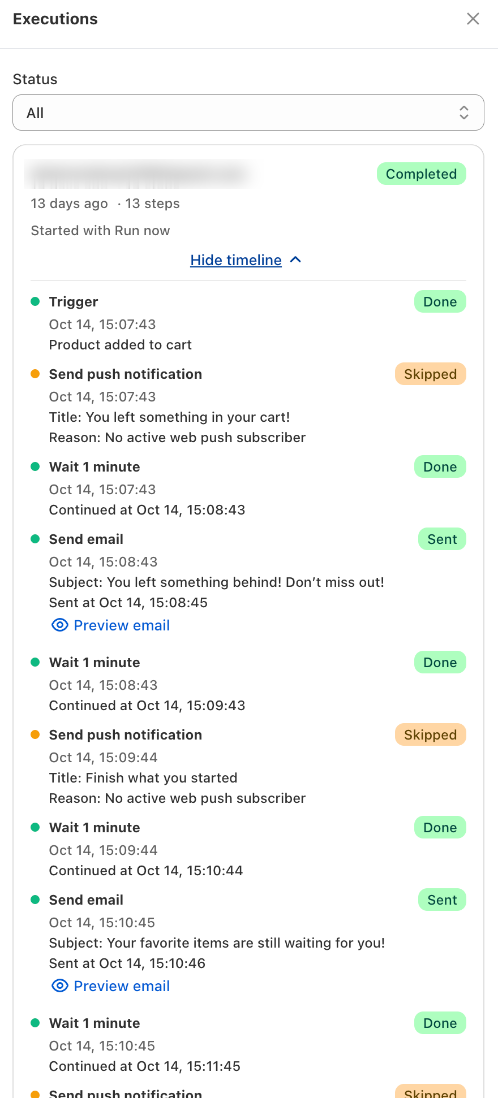
An execution is one customer's run through a flow. Click Executions in the builder to see them.
Filter by Status:
| Status | Meaning |
|---|---|
| Running | Moving through the steps right now. |
| Waiting | Paused on a wait step, waiting for the sending window, or retrying after a temporary error. The log shows the step and when it continues. |
| Completed | Reached the end of the flow. |
| Cancelled | Stopped early — an exit condition was met, the flow was turned off, edited or deleted, or the cart no longer matched the trigger filters. |
| Failed | Stopped because of a problem, usually a step that is not set up correctly. |
Click Show timeline to see every step of the run:
- each wait, with when it continued (and whether it restarted because the cart changed),
- each condition and split, with the result or path taken,
- each push, with the title and how many devices it reached,
- each email, with the recipient, subject, discount code, and whether it was delivered, opened or clicked — click Preview email to see it,
- skipped steps, with the reason — for example Customer unsubscribed from email marketing.
Runs started by hand from the Abandoned Checkout page are marked Started with Run now.
The execution log is the best place to answer "why did this customer (not) get my message?". See also FAQ & troubleshooting.