
Create your first flow
This guide walks you through creating a flow from a template, checking it, and turning it on. It takes about five minutes.
1. Open the template library
- In the Uppush app, click Flows in the menu.
- Click New flow. The template library opens.
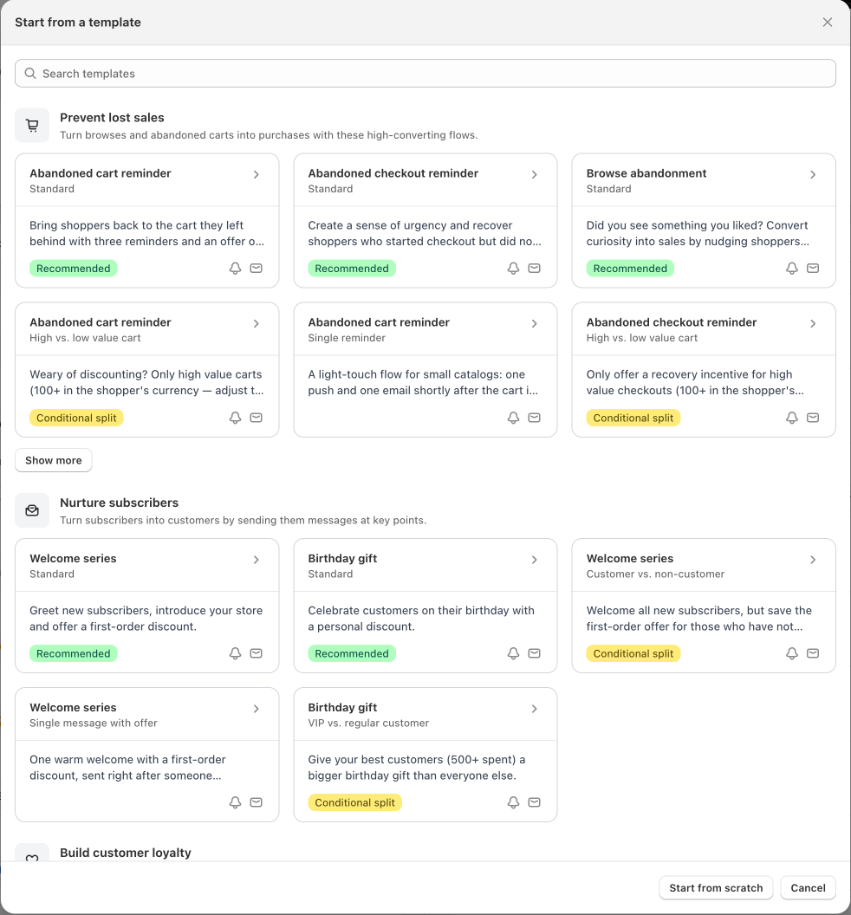
Templates are grouped by goal — for example Prevent lost sales or Nurture subscribers. The template marked Recommended in each group is the best place to start. You can also type in Search templates to find one by name.
2. Choose a template
Click a template card to see its details:
- Trigger — what makes a shopper start the flow, and any filter that comes with it.
- Exit when — what makes a shopper leave the flow early.
- Re-entry — how often the same shopper may start the flow again.
- Steps — every wait, push notification, email and branch, in order.
- Messages — how many web push notifications and emails the flow sends.
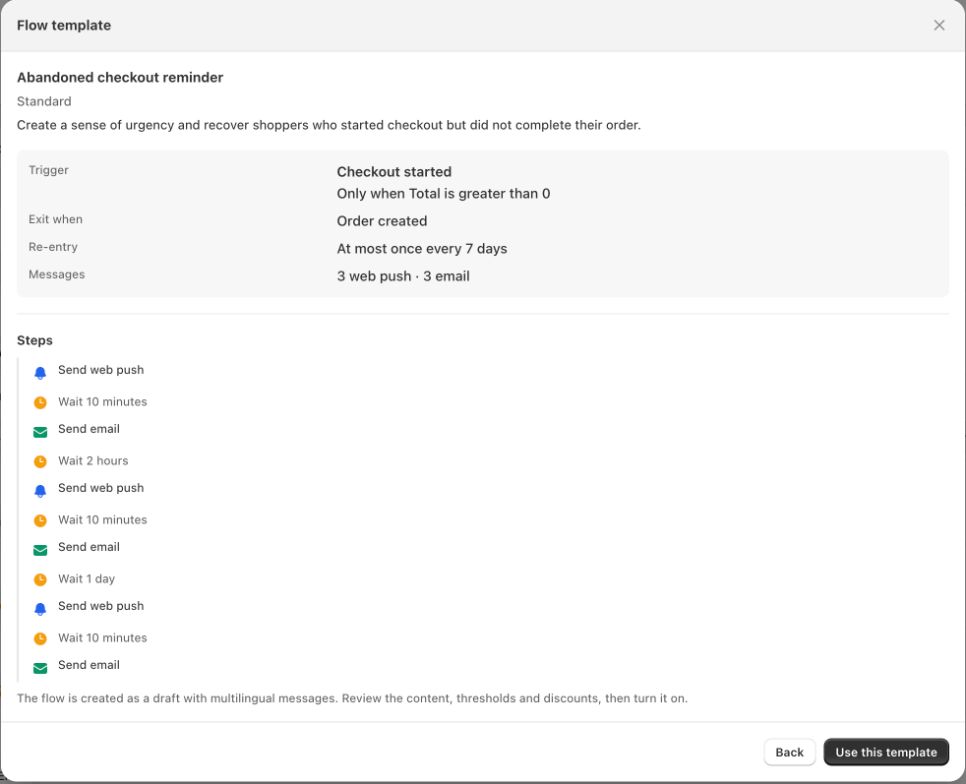
When you have found the one you want, click Use this template.
Uppush creates the flow as a draft, with every message already written and translated into the languages published in your store, and opens it in the builder. Nothing is sent until you turn the flow on.
Prefer to build it yourself?
Click Start from scratch in the template library to get an empty flow with only a trigger. You can then add every step yourself — see Flow steps.
3. Review the flow in the builder
The builder shows your flow from top to bottom.
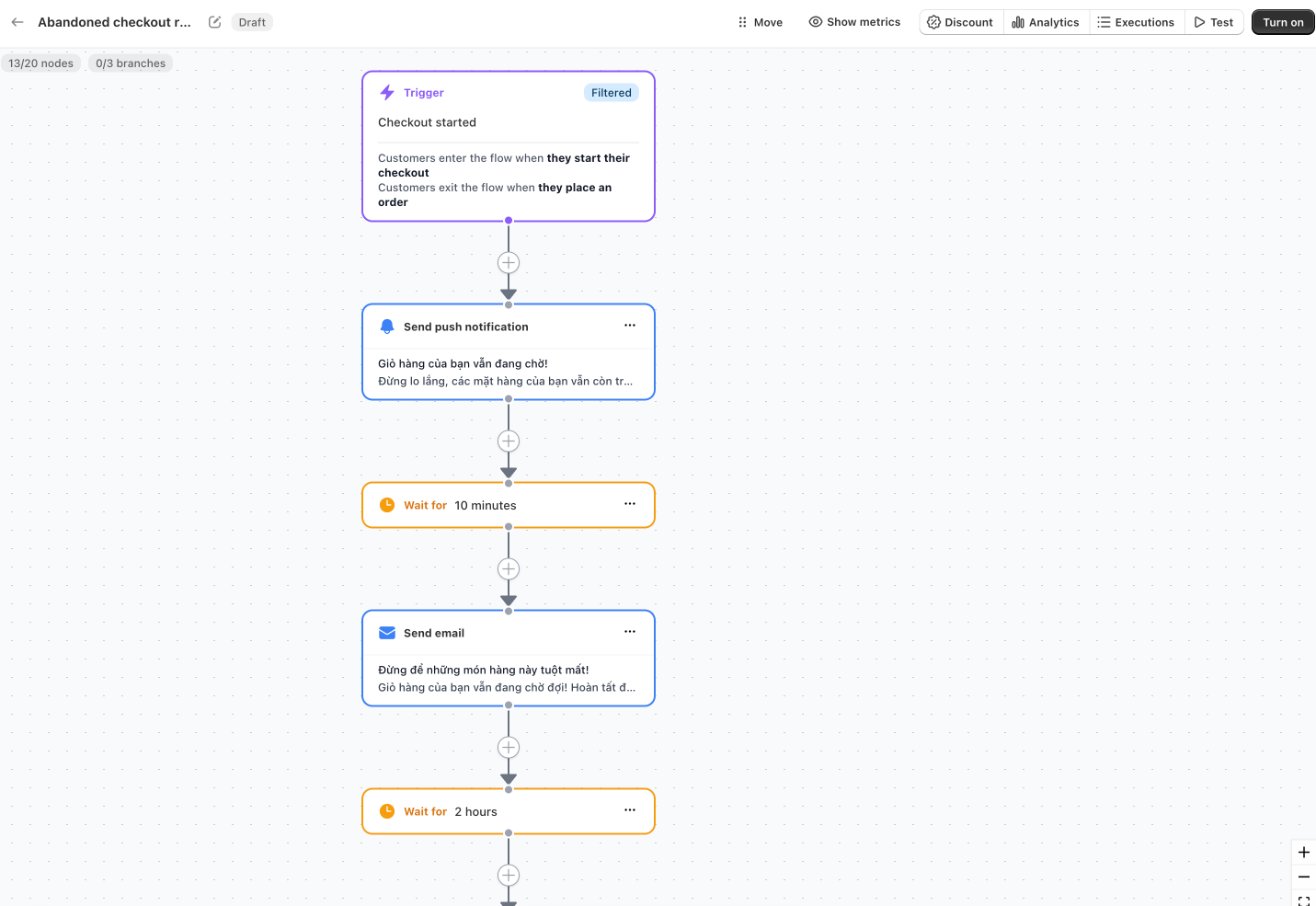
- The trigger card at the top summarises the flow in plain words: Customers enter the flow when… and Customers exit the flow when…. Click it to change the trigger, filters, entry rules, exit conditions and the sending window.
- Each step below it is a wait, a condition, a split or an action. Click a step to open its settings in the panel on the right.
- The flow ends with an End card.
Check at least these things before you turn the flow on:
- The messages. Click each push notification and email step and read the content. For an email, click Edit email template to open it in the email builder.
- The discount. Templates that include an offer use a 10% code that is unique for each customer and expires after 7 days. It is set in the Discount block of the email template and in the discount settings of the push step. To use one discount for the whole flow instead, click Discount at the top of the builder — see Discounts.
- The thresholds. Some templates use amounts such as cart total of 100 or more or spent 500 or more. These amounts are in your store currency, so adjust them to your prices.
- The sender. In an email step, check the sender name and address. See Email sender.
Click Save after making changes.
4. Add, move or remove steps
- To add a step, click the + button on the line between two steps and choose what to insert: Send push notification, Send email, Manage tags, Delay, Condition or Split (A/B test).
- To duplicate or delete a step, use the menu on the step card. When you delete a step, the steps around it are reconnected automatically.
A flow can have up to 20 steps, and up to 3 of them can be conditions or splits.
5. Test the flow
Before going live:
- Click Test at the top of the builder to walk through the flow with sample data. Nothing is sent and waits are skipped; you see which path a shopper would take.
- In an email step, use Send test email to receive the email in your own inbox.
Read more in Test your flow.
6. Turn it on
Click Turn on at the top of the builder.
Uppush checks the flow first. If something is missing, you see a message explaining what to fix — for example an email step without a subject, a step that is not connected, or a trigger that your plan does not include.

Once the flow is Active, every shopper who matches the trigger from now on starts it. Shoppers who triggered the event before you turned the flow on are not included.
Editing a flow that is already on
You can change an active flow at any time. However, if customers are in the middle of the flow when you save, Uppush asks you to confirm, because saving removes those customers from the flow and they will not receive the remaining messages. New customers start the updated version.
Turning a flow off works the same way: new customers stop entering, and customers who are in the flow leave it.
Next steps
- Triggers — every event that can start a flow
- Filters, entry rules and exit conditions — decide who enters and when they leave
- Flow reports and execution log — see how the flow performs