
Filters, entry rules and exit conditions
A trigger says when a flow starts. The settings in this article decide who may start it, how often, when they leave, and at what time messages go out.
All of them are in the trigger panel: click the trigger card at the top of the builder.
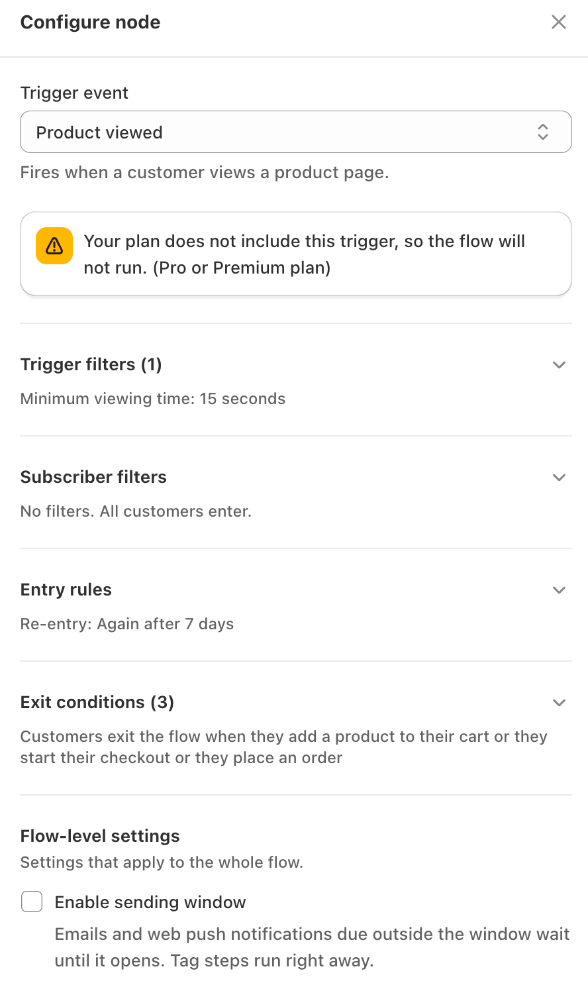
The trigger card on the canvas always sums up the result in plain words, for example:
Customers enter the flow when they start their checkout Customers exit the flow when they place an order
Trigger filters
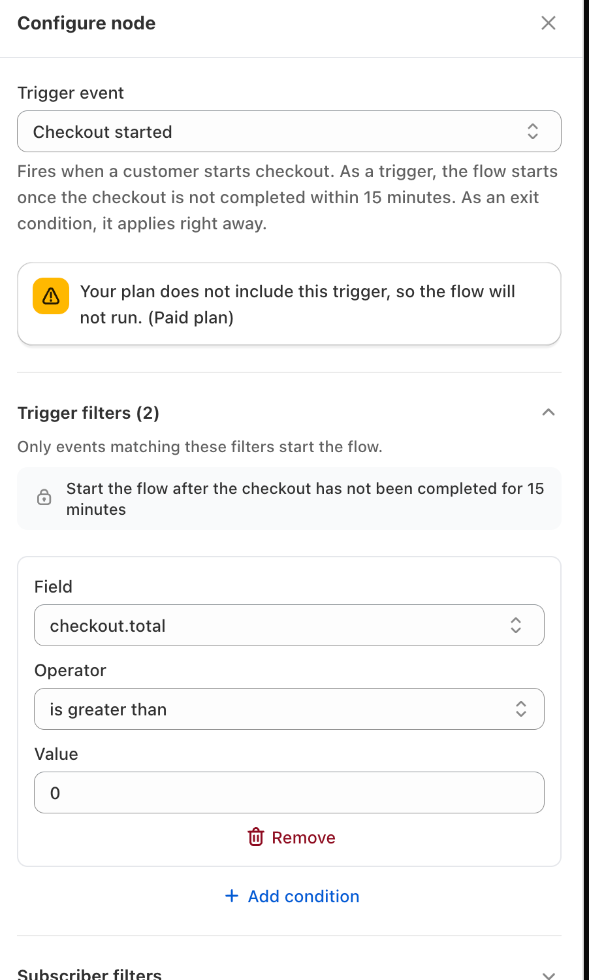
Only events matching these filters start the flow. Trigger filters look at the event itself — the checkout, the order, the product or the message.
Examples:
- Abandoned checkout flow: Total is greater than 50 — ignore small checkouts.
- Order flow: Product tags contains any of "subscription" — only orders that include subscription products.
- Customer tag added flow: Customer tags contains any of "VIP" — only when the VIP tag is added.
The fields you can use depend on the trigger. A checkout trigger offers cart fields (total, quantity, products, collections, shipping country…), an order trigger also offers order fields (payment status, fulfillment status, tags…), and a product trigger offers product fields (price, previous price, tags, title…).
With no trigger filters, every event starts the flow.
Subscriber filters
Only customers matching these filters enter the flow. Subscriber filters look at the customer's profile: tags, country, city, total spent, number of orders, language, email marketing consent, birthday and more.
Examples:
- Orders count is at least 1 — only people who have bought before.
- Country is US — only customers in the United States.
- Customer tags does not contain any of "wholesale" — leave wholesale customers out.
Web push subscribers without a customer profile
A shopper who only allowed web push notifications, and never gave an email address, has no customer profile. Subscriber filters cannot check them, so they always enter. If a flow must only reach customers with a certain profile, add a condition step or use an email‑only flow.
How filters are combined
- Inside a group you choose whether all filters must match (AND) or any of them (OR).
- Trigger filters and subscriber filters must both pass.
- Filters are checked once, when the shopper enters. If the customer's details change later, they stay in the flow. To check something again later in the flow, use a condition step.
- Tag comparisons ignore upper and lower case: "VIP" and "vip" are the same.
Entry rules
Control when a customer is allowed to start this flow.
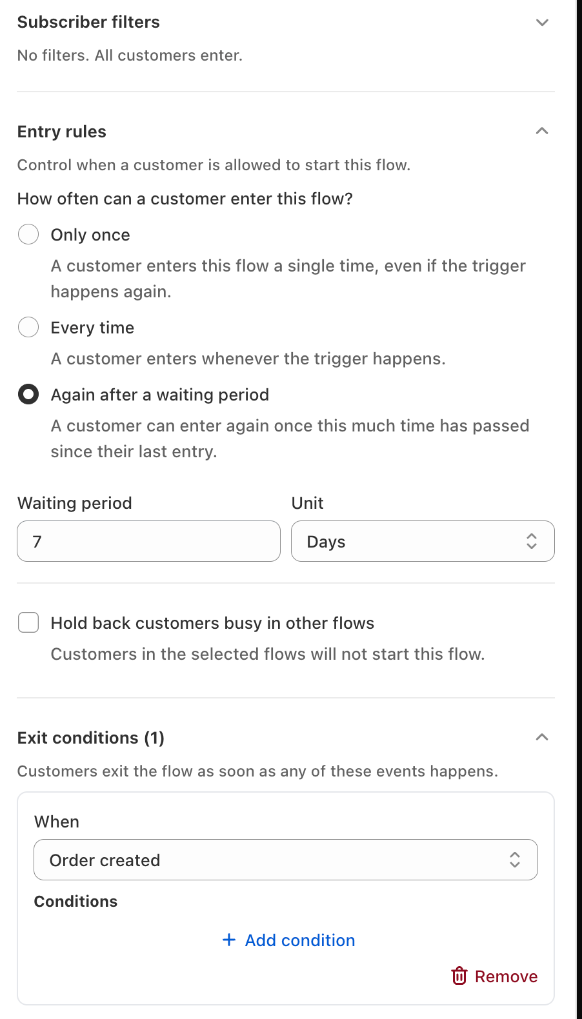
How often can a customer enter this flow?
| Option | Meaning | Good for |
|---|---|---|
| Every time | A customer enters whenever the trigger happens. | Order confirmations, shipping updates |
| Only once | A customer enters this flow a single time, even if the trigger happens again. | Welcome series, first‑purchase flows |
| Again after a waiting period | A customer can enter again once the Waiting period (minutes, hours or days) has passed since their last entry. | Abandoned cart (7 days), winback (90 days) |
Hold back customers busy in other flows
Turn this on to keep customers from receiving two similar journeys at the same time. Click Choose flows to select the other flows, then under Hold back when the customer is pick:
- Still in one of these flows — the customer is held back while they are in any selected flow.
- In one of these flows, or finished one recently — the customer is also held back if they finished one within the last 1 to 7 days (Finished within).
If you turn the rule on but choose no flows, it is ignored.
Example: an abandoned cart flow and an abandoned checkout flow. Select the cart flow in the checkout flow's rule, so a shopper who is already getting cart reminders does not also get checkout reminders.
Entry rules apply to customers. They do not apply to shoppers who only subscribed to web push.
Exit conditions
Customers exit the flow as soon as any of these events happens. When a shopper leaves, they receive no more messages from the flow.
Click Add exit condition, pick an event, and optionally add filters to it. If you add several exit conditions, any one of them is enough.
Common exit conditions:
| Flow | Exit when |
|---|---|
| Abandoned cart | Order created, Checkout started |
| Abandoned checkout | Order created |
| Browse abandonment | Product added to cart, Checkout started, Order created |
| Thank you / review request | Order cancelled, Order refunded |
| Winback | Order created |
Exit conditions follow the same shopper — even a shopper who only subscribed to web push leaves an abandoned cart flow when they buy, including when they buy with a different cart.
Without exit conditions, shoppers leave the flow when they reach its end.
Sending window
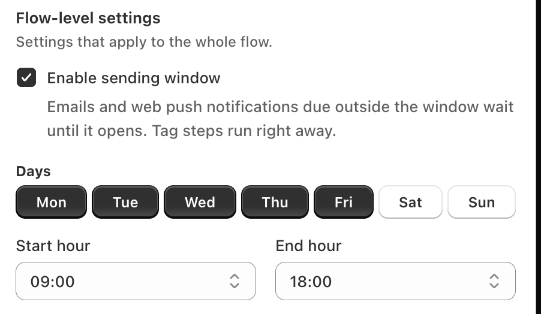
The sending window is under Flow‑level settings in the trigger panel. It limits when emails and web push notifications are sent — for example only Monday to Friday, 09:00 to 18:00.
- Turn on Enable sending window.
- Choose the Days.
- Choose the Start hour and End hour. The end hour is not included; choose 24:00 to send until midnight.
Times use your store's time zone.
A message that is due outside the window waits until the window next opens, and the flow continues from there. Tag steps are not affected and always run right away.
Related
- Triggers
- Flow steps — conditions inside the flow
- FAQ & troubleshooting — why a customer did not enter a flow